How to set up the time clock
· 2 min read
Record working time the way the law asks: people clock in on their phone or on a shared tablet, HR sees who's in today, and each month is closed and kept for inspections.

In many European countries every employer has to record each person's working time, every day. The time clock in Bizisy does it with the least effort: people clock in on their phone or on a shared tablet, HR sees who's in at a glance, and each month is closed with a record ready for an inspector. It works with Time off, so days off and holidays are already counted.
1. Set it up
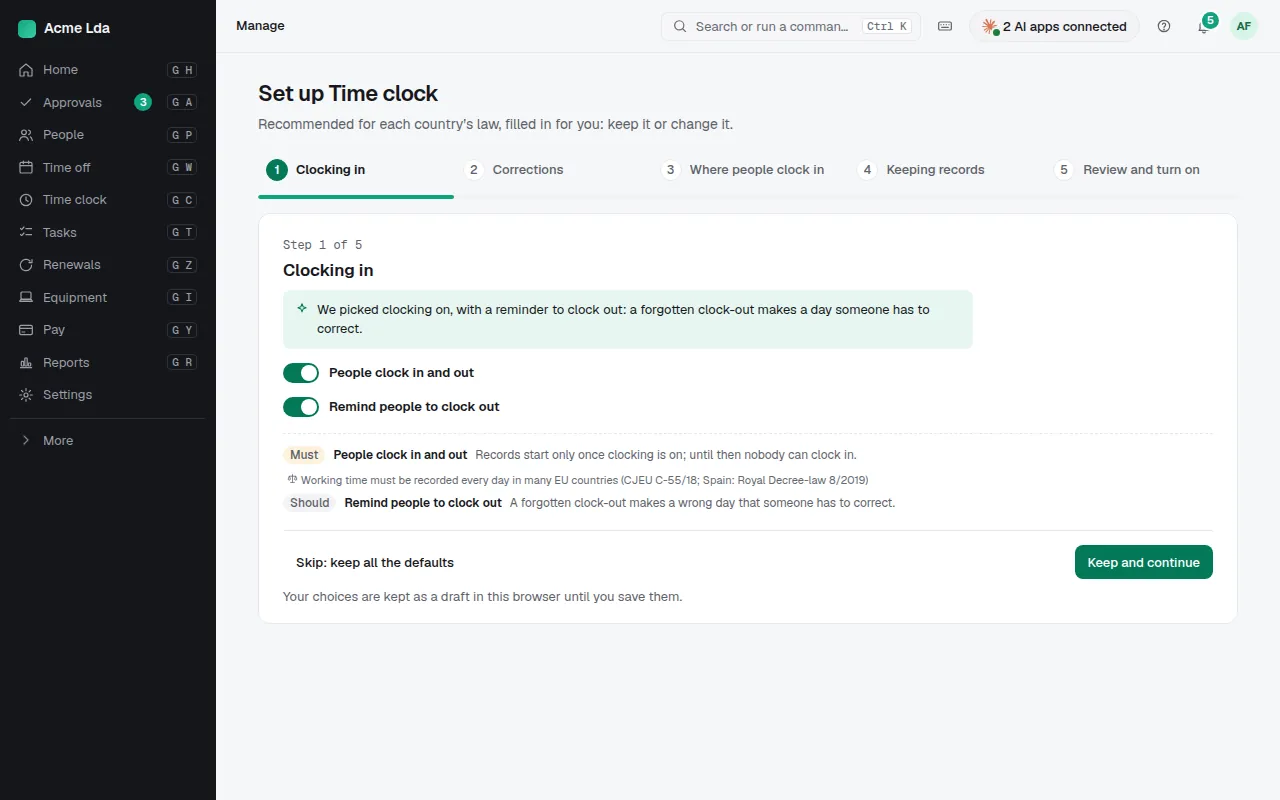
Switch on Time clock in Settings → Modules and follow its setup. It walks through clocking in and the reminder to clock out, how mistakes are corrected, where people clock in, and how long records are kept. Each choice starts filled in for your countries' law, with the reason next to it; keep it or change it.
2. People clock in on their phone
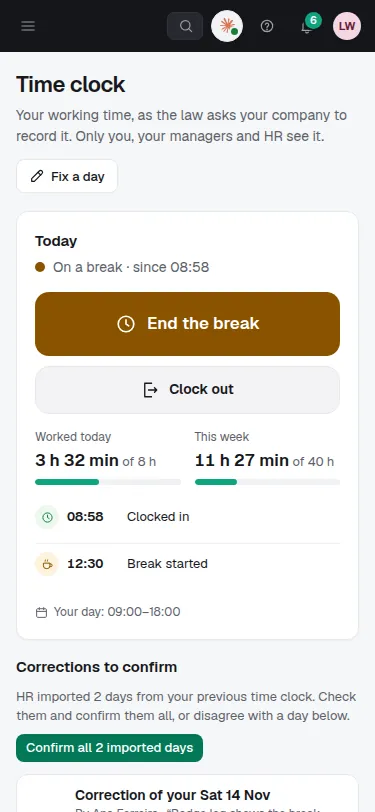
Each person clocks in, takes a break and clocks out in My workspace → Time clock, on their phone or computer. They see today's and this week's hours against their schedule. Forgot to clock out? Fix a day sends the correction to their manager or HR to approve.
3. Or on a shared tablet
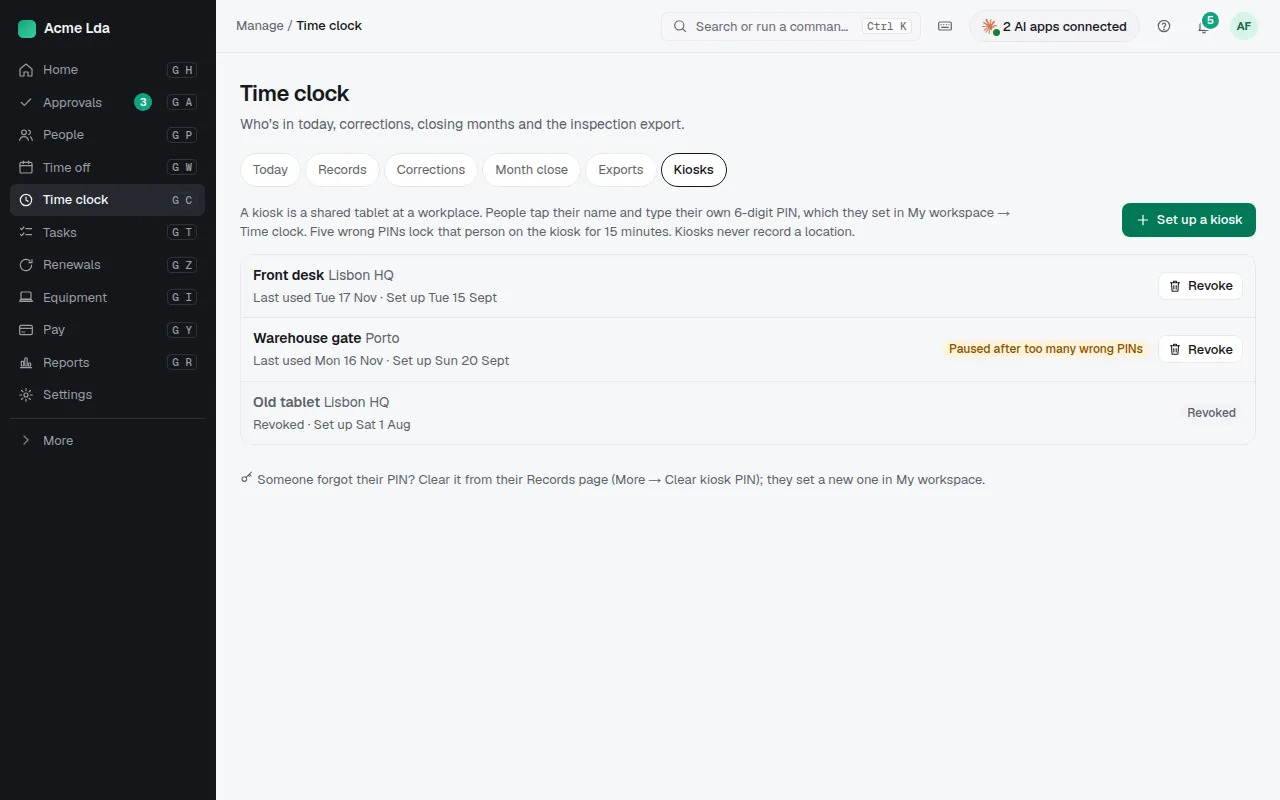
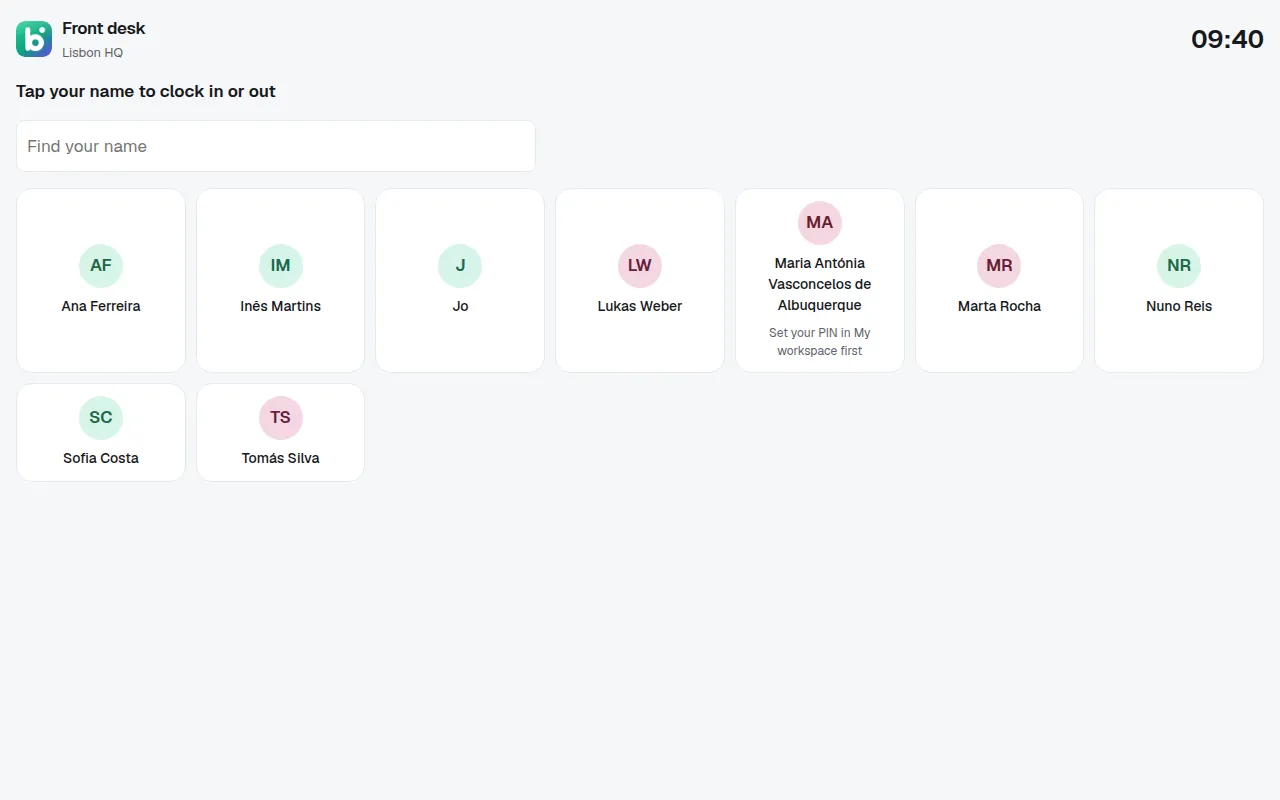
For a workplace where people don't use a phone at work, set up a kiosk under Time clock → Kiosks and open its link on a tablet by the door. People tap their name and type the 6-digit PIN they set in My workspace. Five wrong PINs lock that person on the kiosk for 15 minutes, and a kiosk never records location.
4. See who's in today
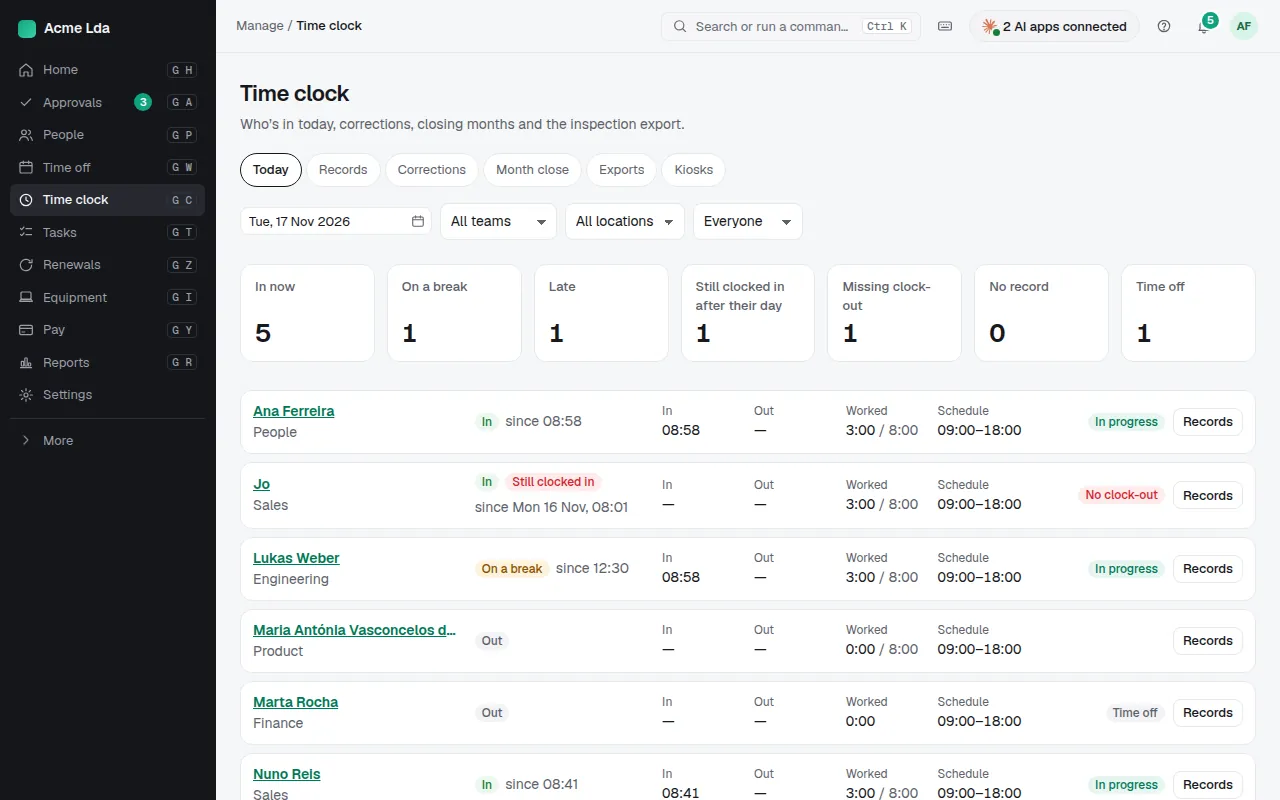
Time clock → Today shows who's in, on a break, late, still clocked in after their day or missing a clock-out, and who is off. Filter by team or location, and open anyone's records to see or correct a day.
5. Close each month
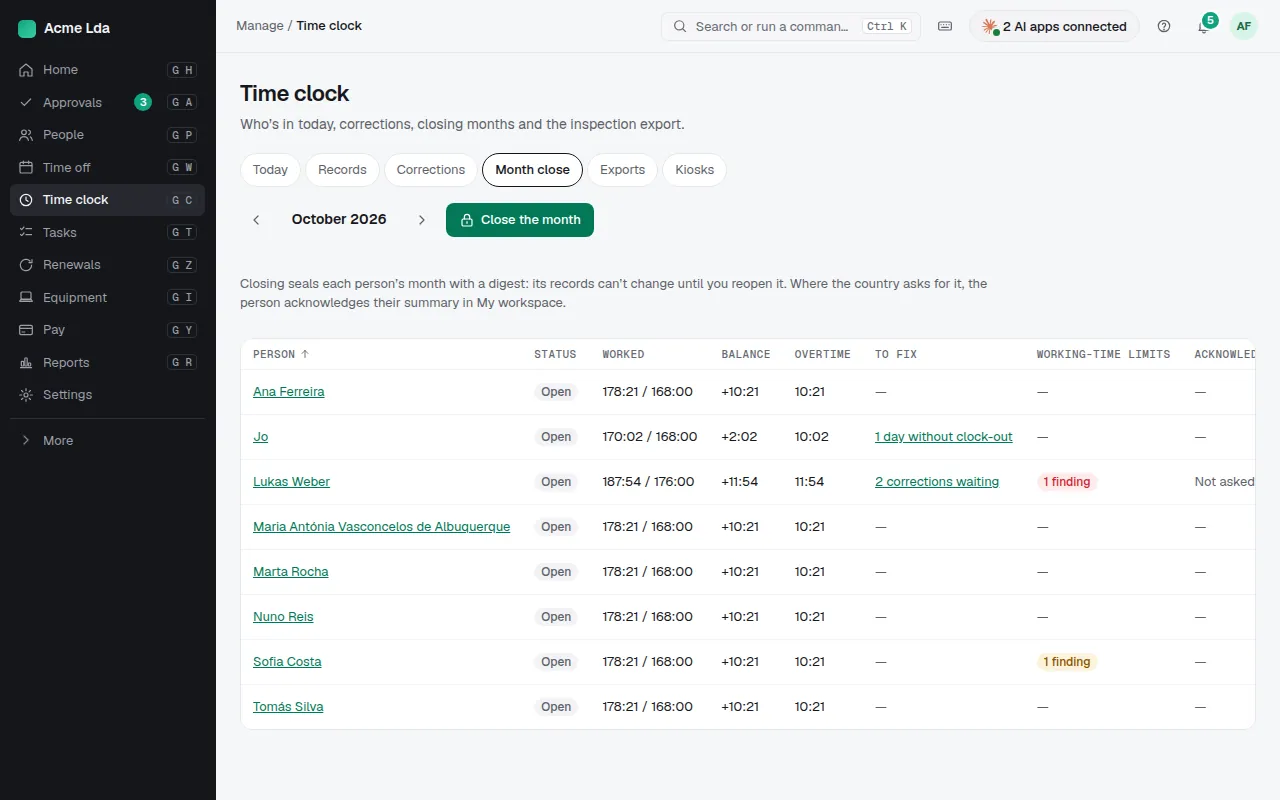
At the end of the month, Month close lists each person's hours against their schedule, the balance and overtime, and what is still to fix. Close the month seals its records so they can't change unless you reopen it. Where the country asks for it, each person acknowledges their monthly summary in My workspace.
Tips
- Exports has the inspection export (one person's month as a PDF, with the seal and the acknowledgement) and the hours for payroll.
- Moving from another time clock? Import its records under Records; people confirm the imported days in My workspace.
- A badge or fingerprint terminal by the door? Connect it and its punches arrive by themselves.
- Someone forgot their kiosk PIN? Clear it from their records; they set a new one in My workspace.