How to export hours for payroll
· 1 min read
Close the month, then export each person's worked, overtime, night and holiday hours for payroll, the inspection record, or one person's monthly report.

Your payroll provider needs the hours, and a labour inspector may ask for the daily record. Both come from the time clock in a few clicks. Close the month first, so the numbers can't change after you've sent them.
1. Close the month
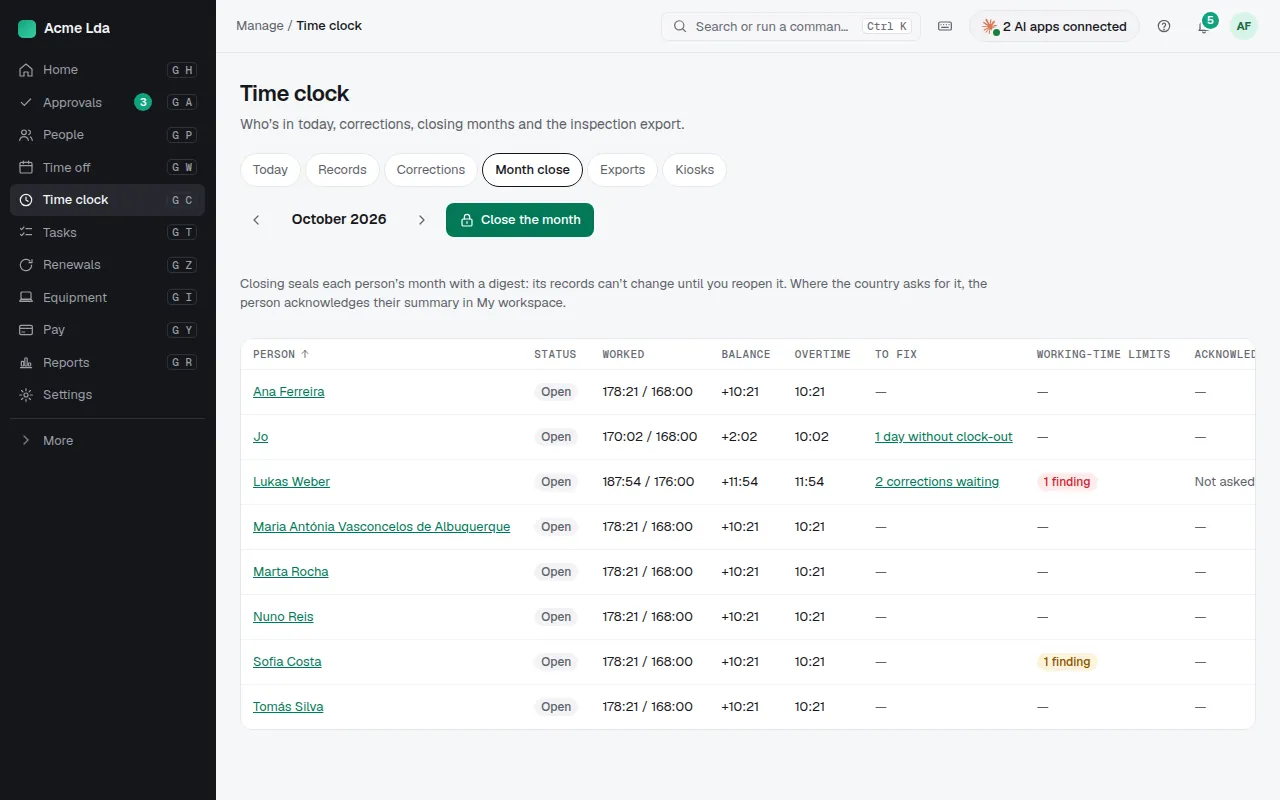
Time clock → Month close lists each person's hours against their schedule, the balance and overtime, and what's still to fix, such as a day without a clock-out. Close the month checks it first and seals its records.
2. Export the hours
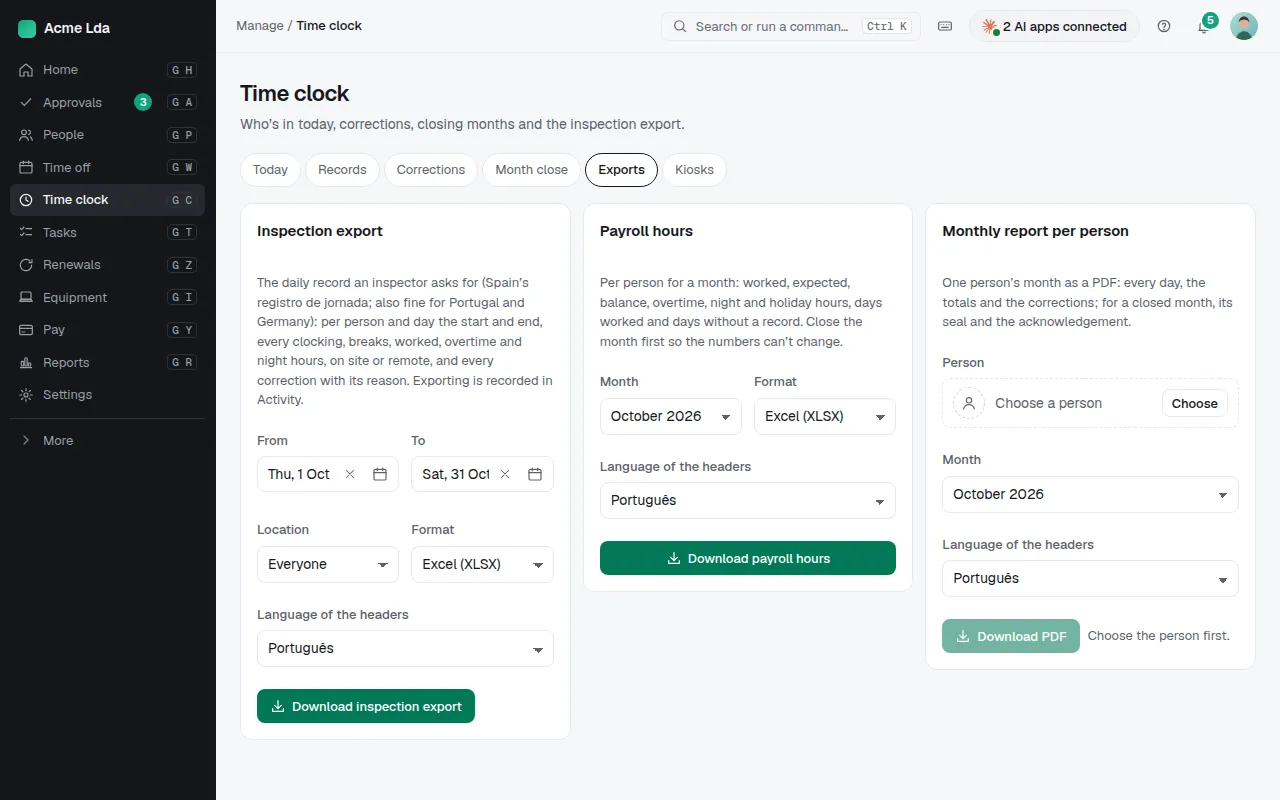
Time clock → Exports has three files:
- Payroll hours: per person for a month, worked, expected, balance, overtime, night and holiday hours, days worked and days without a record.
- Inspection export: the daily record an inspector asks for (Spain's registro de jornada; also fine for Portugal and Germany), with every clocking, break and correction and its reason, for up to about three months at a time.
- Monthly report per person: one person's month as a PDF, with the totals and corrections, and for a closed month its seal and the acknowledgement.
Tips
- Choose the location and the language of the headers before you download.
- Where the country asks for it, people acknowledge their monthly summary in My workspace once the month is closed.
Start freeFree up to 9 people, then €1.50 per active person per month, excl. VAT. Every module included.