How to approve overtime before it's worked
· 3 min read
Ask for overtime before it's worked, approve it as a manager or HR, decide hours worked beyond plan without approval, and close the month with only approved overtime counted for payroll.

The time clock counts overtime from the hours people clock and checks it against their country's yearly limit. You can also ask for it to be approved before it's worked: in Portugal the employer must expressly ask for overtime (Código do Trabalho arts. 226–231), and approving it in advance is how most time-and-attendance tools work. Hours worked beyond plan without approval are then never paid as overtime silently.
1. Switch overtime approval on
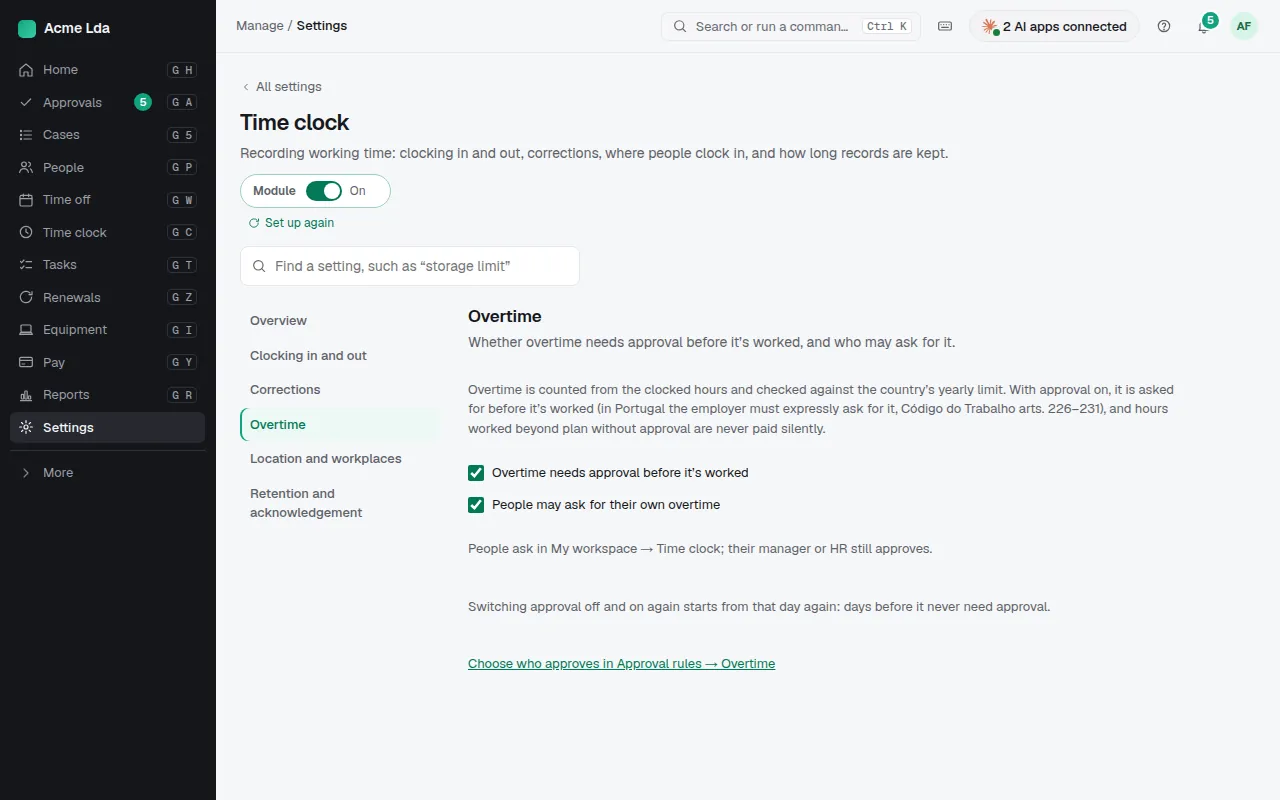
Under Settings → Time clock → Overtime, tick Overtime needs approval before it's worked. It's off until you switch it on, and it applies from that day: days already worked don't need approval. Choose whether people may ask for their own overtime, or only their manager and HR. Who approves is under Settings → Approval rules → Overtime: the manager (HR approves a manager's own, and anyone's without a manager), HR, or the manager then HR. HR may always ask for their own overtime; if you're the only HR member, yours is approved by itself and noted.
2. Ask for overtime before it's worked
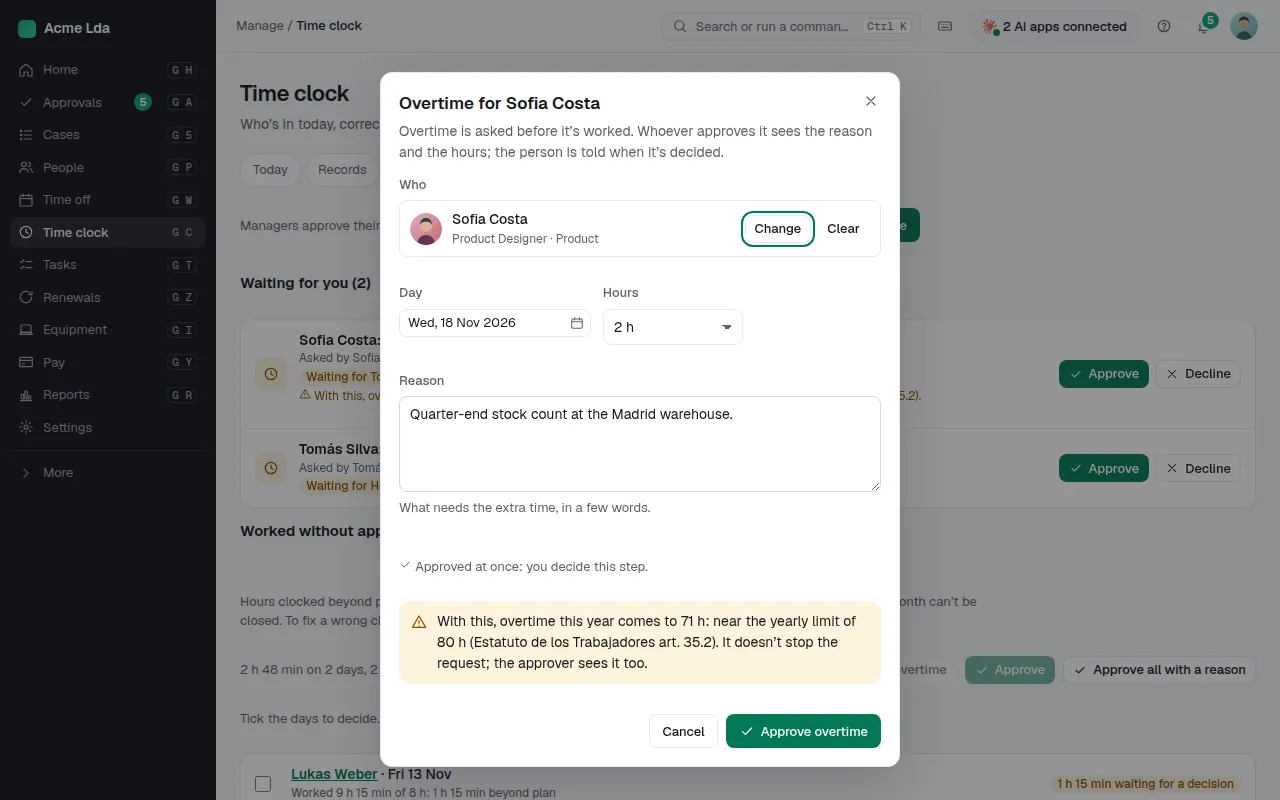
A manager asks for a team member's overtime in My workspace → Team time, HR in Time clock → Overtime → Request overtime: who, the day, the hours and the reason. Bizisy says who decides before you send it, and warns when the request would take the person's overtime this year near or over their country's limit (80 hours in Spain, 150 or 175 in Portugal). A manager asking for their own team member approves it at once; the person is told. If you allow it, people ask for their own in My workspace → Time clock → Overtime.
3. Approve or decline
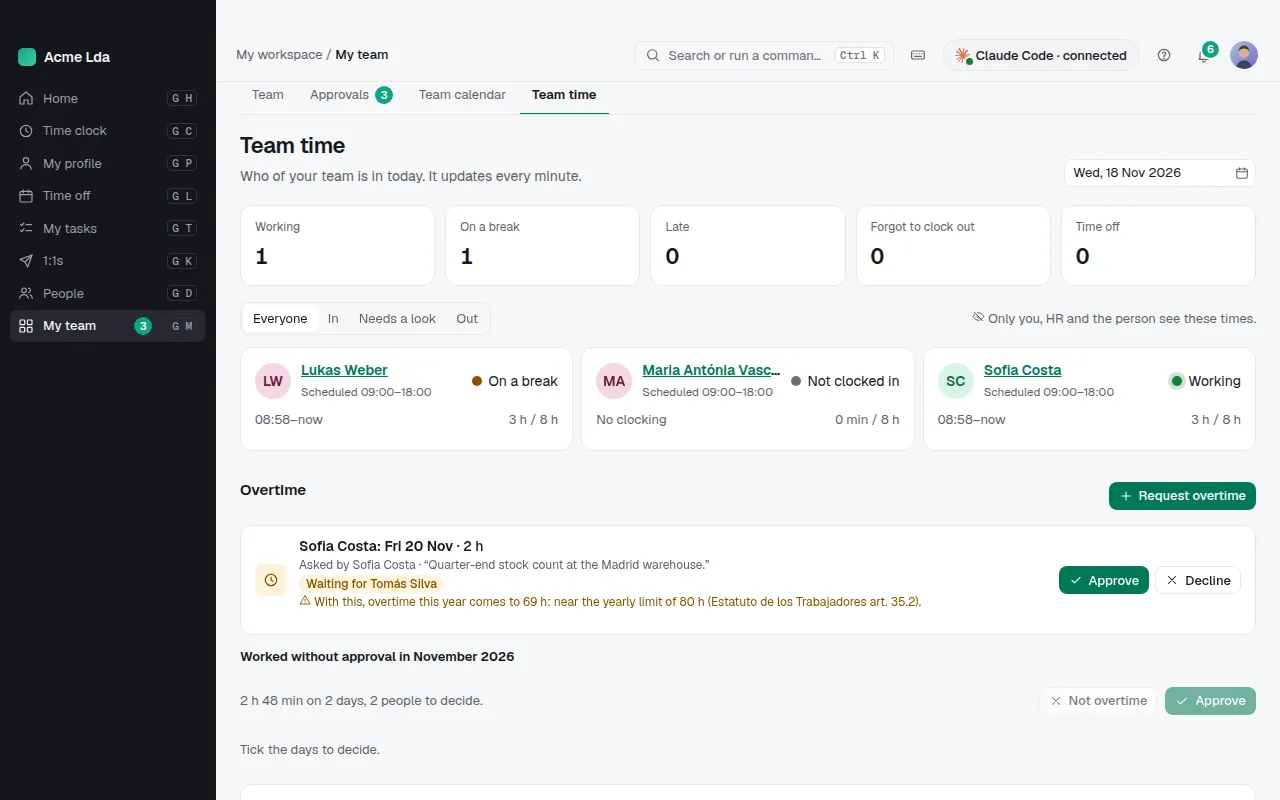
Requests waiting for you are in Approvals, on Home, in Team time and under Time clock → Overtime, with the reason and the yearly-limit warning. Approve it, or decline it with a comment; the person is told either way. Nobody approves their own overtime, and an AI assistant or an API key never decides.
4. Decide hours worked beyond plan
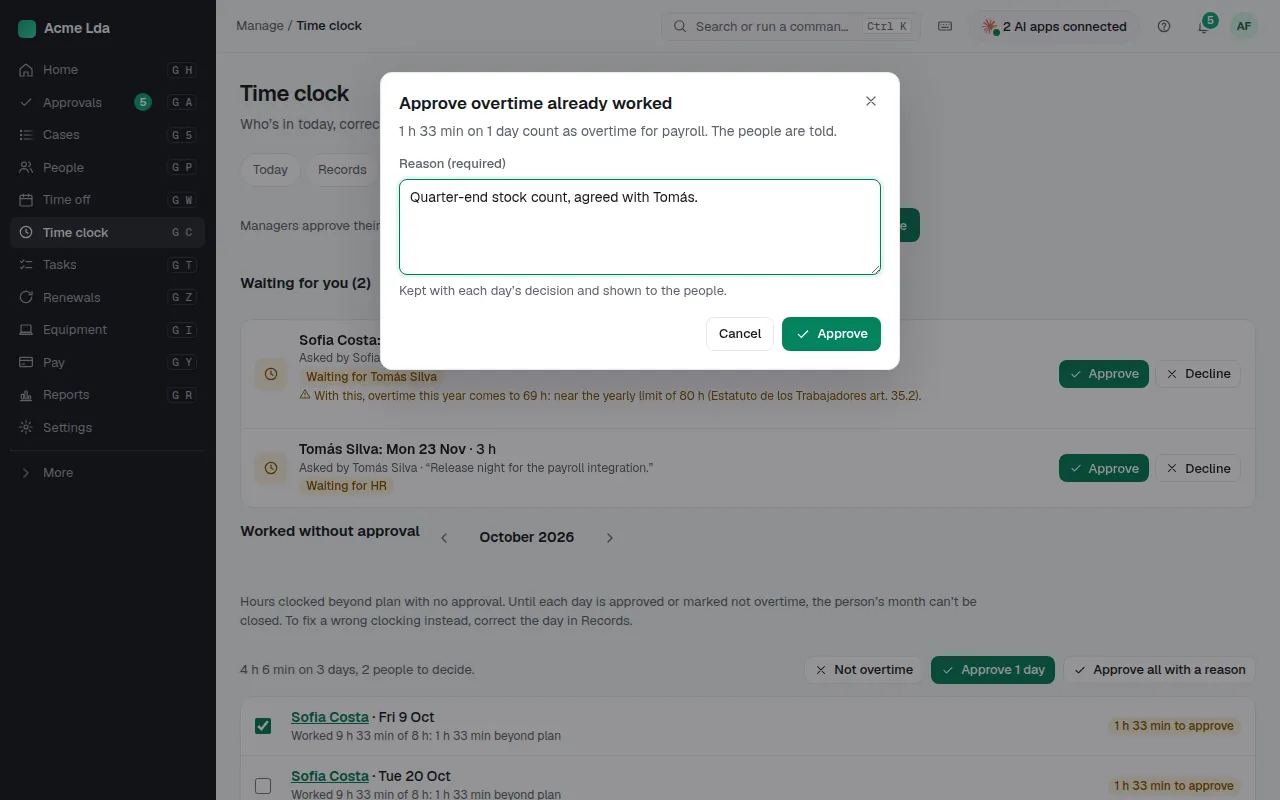
When someone works beyond plan without approval, the day shows Overtime to approve, and Time clock → Overtime → Worked without approval lists those days month by month. Tick the days and Approve them (they count as overtime for payroll) or mark them Not overtime (they stay in the record as worked time, but aren't paid as overtime), always with a reason. If the clocking itself is wrong, correct the day in Records instead.
5. Close the month
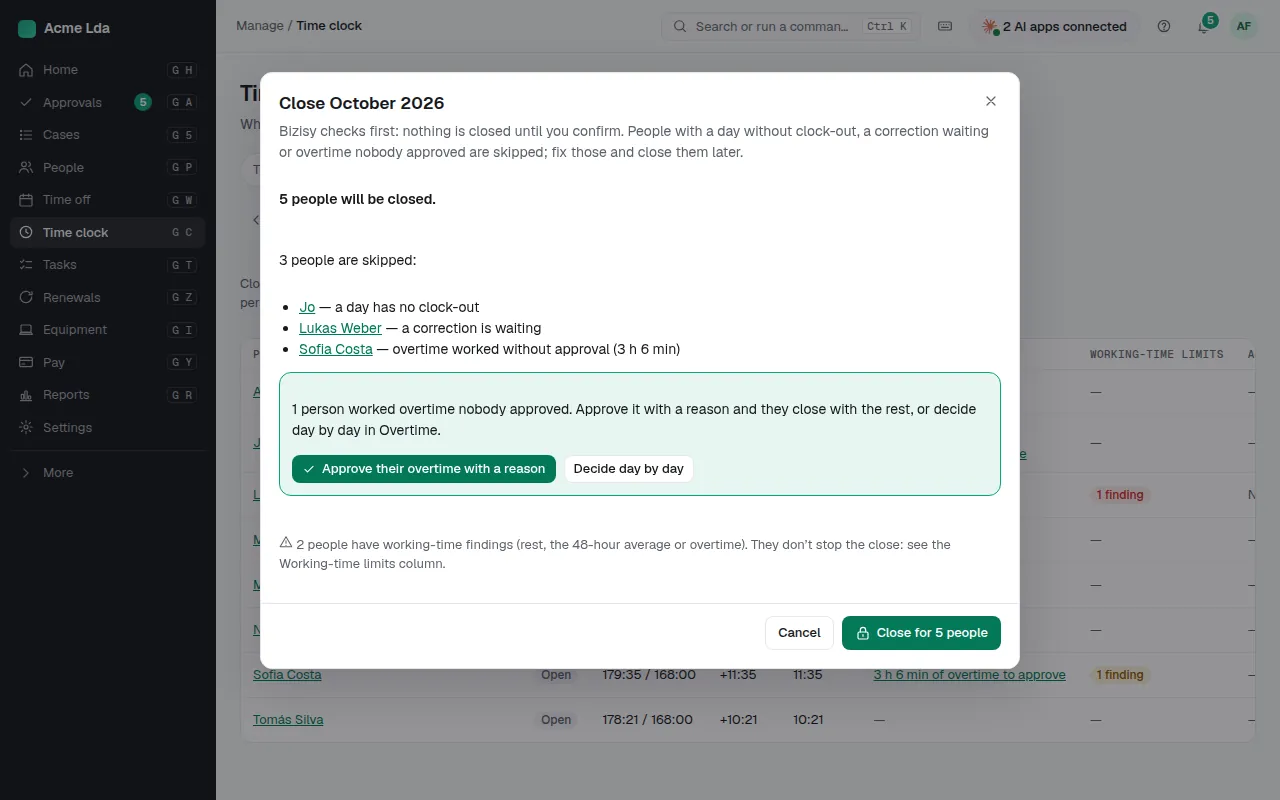
While overtime needs approval, Month close shows each person's unapproved minutes and skips them until they're decided. In the close dialog HR can approve them all at once with one reason, and those people then close with the rest. The sealed month, the payroll hours export and the payroll file count only approved overtime.
Tips
- Approved overtime shows on the person's day in the time clock and on the rota in Shifts.
- Turning approval off goes back to counting overtime as clocked; decisions already made are kept. Turning it on again starts from that day again.
- Changing who approves applies to overtime asked from then on; requests already waiting keep their steps.
- Asking again for a day replaces the hours approved for it, once approved.
- ⌘K has Overtime and Request overtime (and Ask for overtime in My workspace, when you allow it).