How to set up teams and plan a reorg
· 1 min read
Build your teams and their leads, schedule changes for a date, and try a reorganisation as a plan, compared with today, before you apply it.

Teams give your company its shape: who belongs where and who leads each team. In Bizisy you change them on a date, so the chart and reports stay right, and you can try a whole reorganisation as a plan before anyone moves.
1. Your teams and their leads
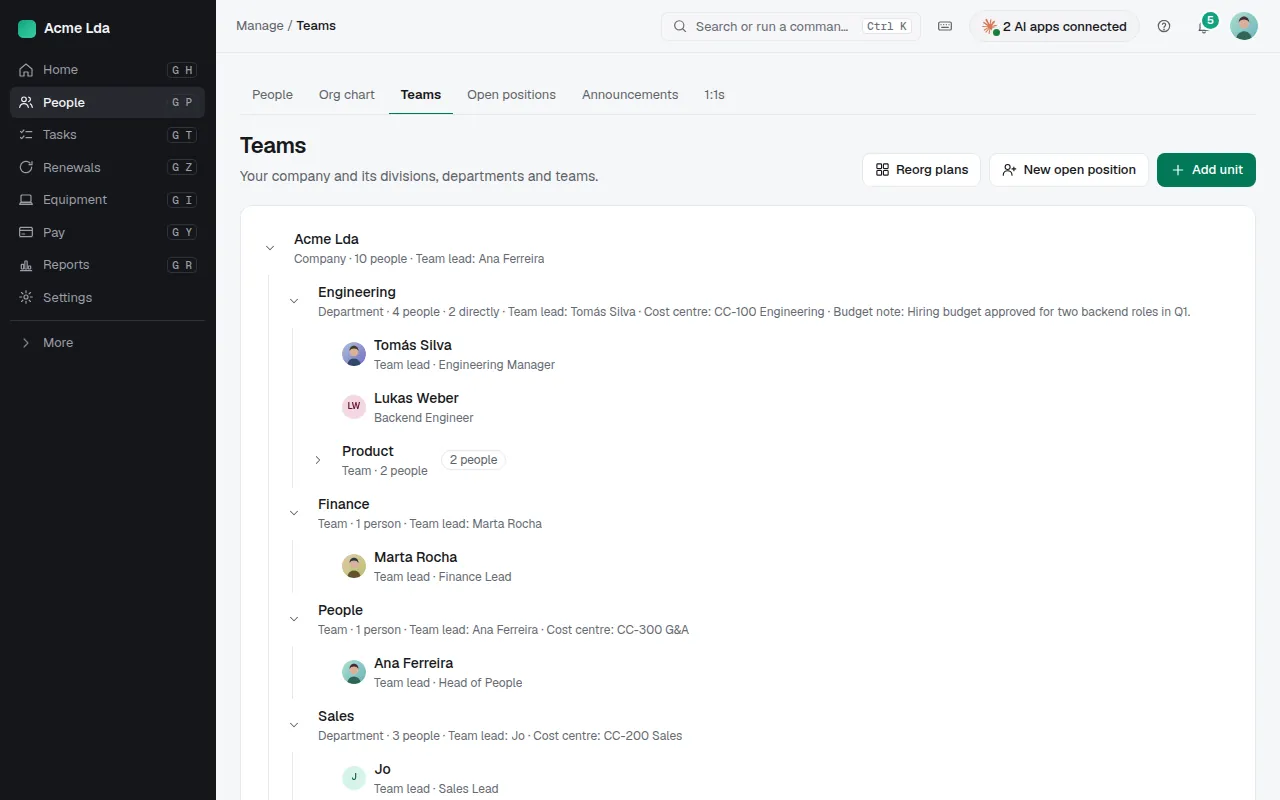
People → Teams shows every team with its lead and the teams below it. Add a team, rename or move one, or change its lead: Bizisy says what that means before you save, such as who stops being lead and whether the new lead moves into the team. Changes can take effect on a future date; they're listed under Scheduled changes.
2. Draft a reorg plan
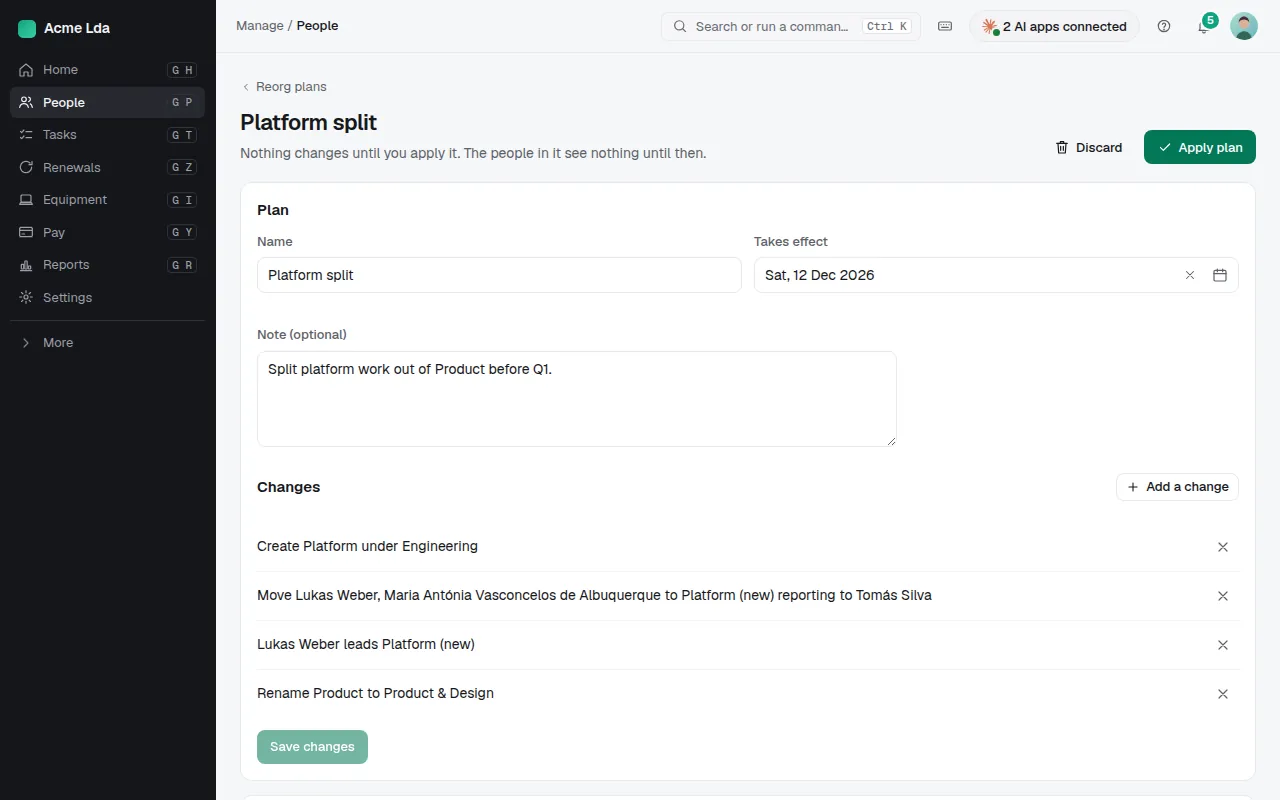
For a bigger change, create a reorg plan: move people, create, rename, move or archive teams, and change leads, all in a draft. The plan compares the result with the same day without it, team by team. Nothing changes for anyone while it's a draft.
3. Apply it
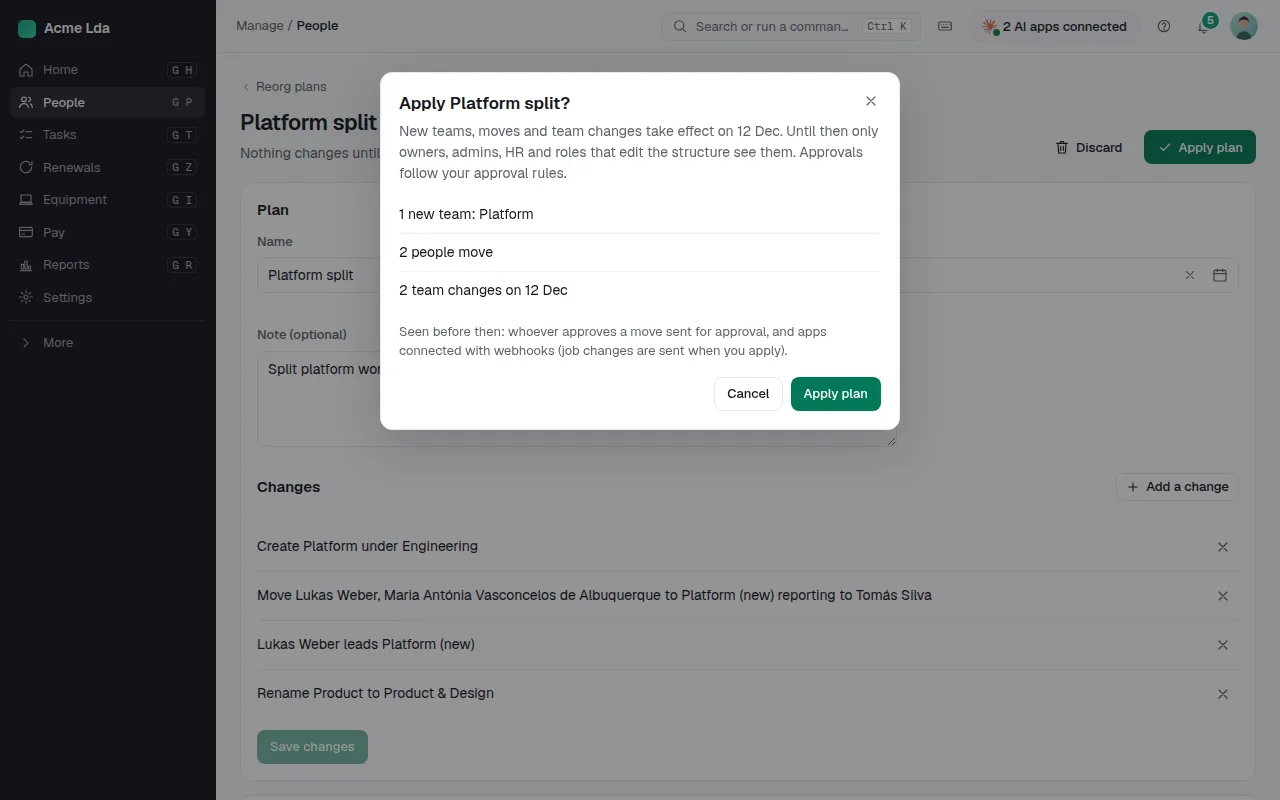
When it's agreed, Apply plan says how many people move and on which date, then makes the changes. Moves that need approval follow your company's approval rules.
Tips
- Discard a plan you don't need; applied and discarded plans stay listed.
- Locations, legal entities and job titles are under Settings.