How to set up sign-in and two-step verification
· 1 min read
Choose how people sign in (password, Google or Microsoft) and who must use two-step sign-in with an authenticator app.

How people sign in is a company setting: with a work email and password, with Google, with Microsoft, or any mix. Owners and admins can also require a second step for some or all roles.
1. Choose the sign-in methods
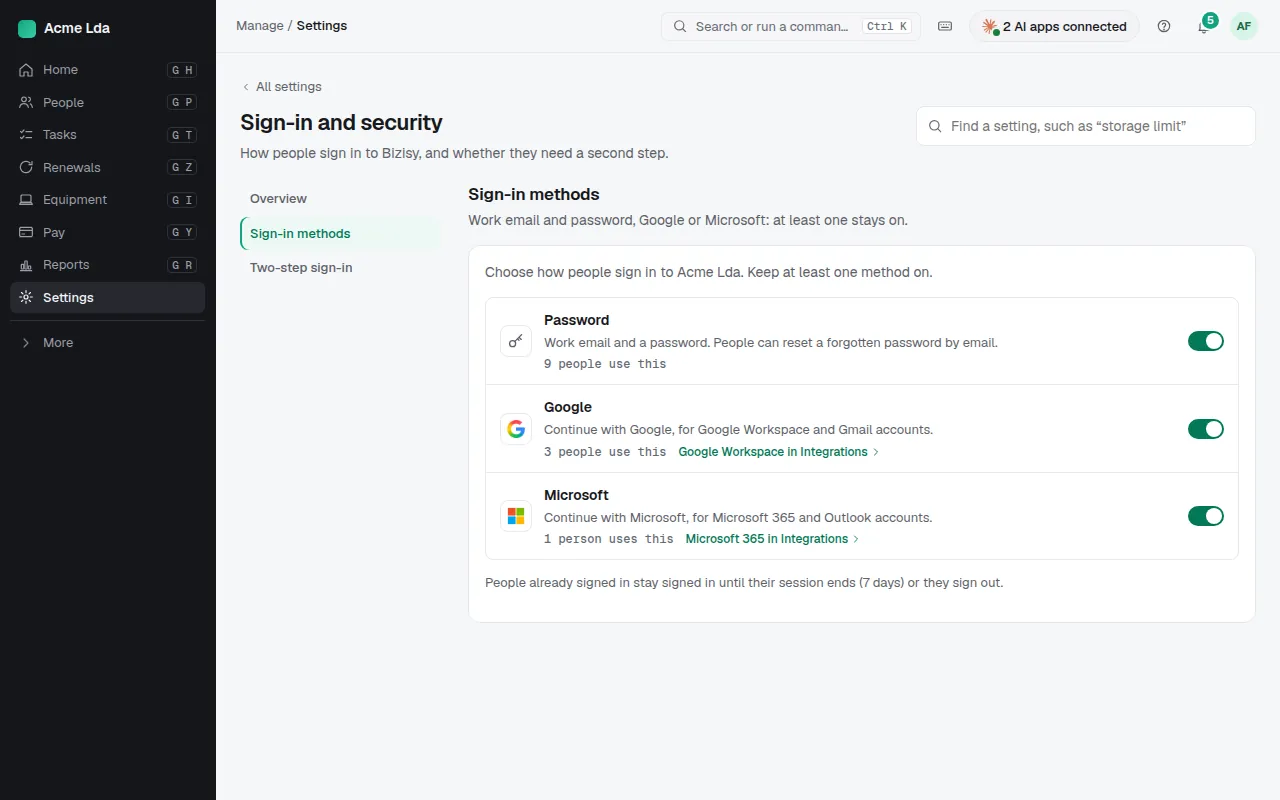
In Settings → Sign-in and security, turn on the methods your company uses: Password (people can reset a forgotten one by email), Google (Google Workspace and Gmail accounts) and Microsoft (Microsoft 365 and Outlook accounts). Each shows how many people use it. People already signed in stay signed in until their session ends (7 days) or they sign out.
2. Require two-step sign-in
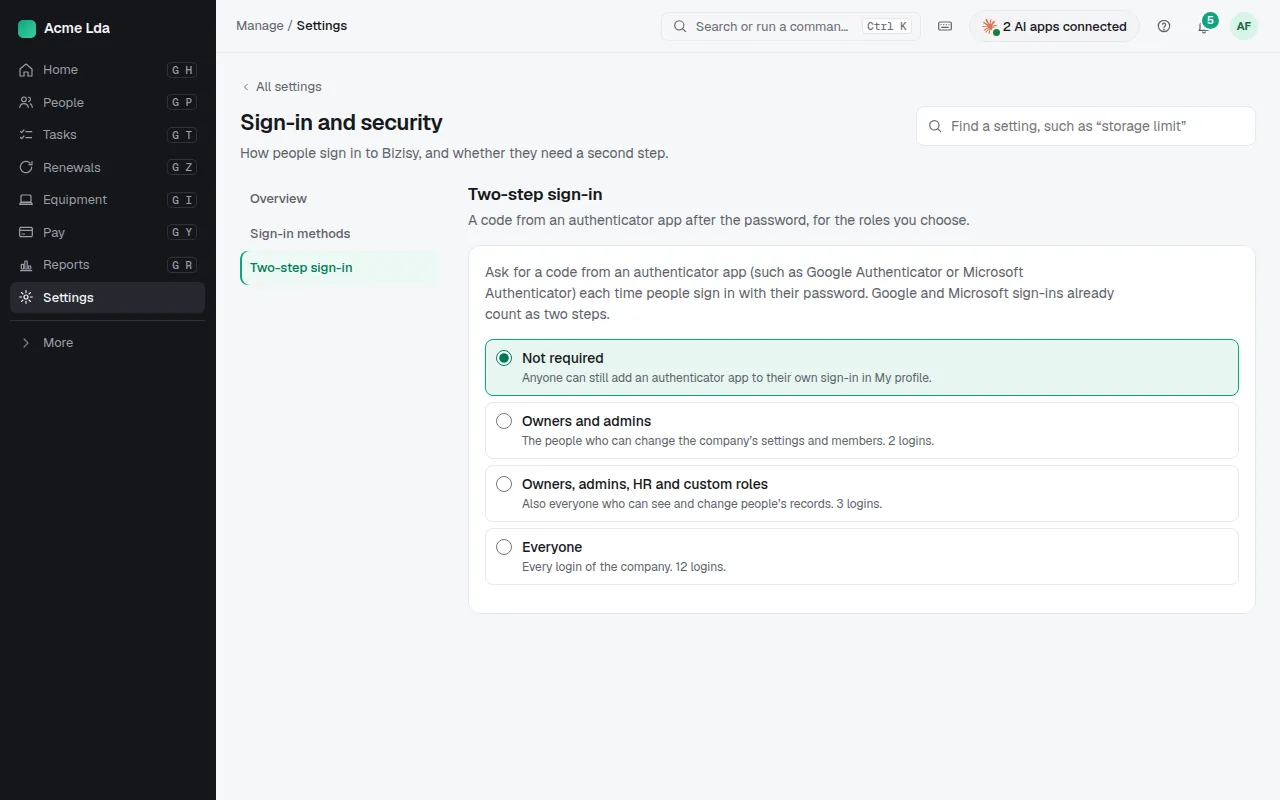
Under Two-step sign-in, choose who must enter a code from an authenticator app (such as Google Authenticator or Microsoft Authenticator) each time they sign in with a password: nobody, owners and admins, owners, admins, HR and custom roles, or everyone. Google and Microsoft sign-ins already count as two steps. If it includes you, add an authenticator app to your own sign-in first, in My workspace → My profile.
Tips
- Anyone can add an authenticator app to their own sign-in, even when it isn't required.
- Someone can't sign in? See How do I reset someone's login?