How to use the org chart
· 2 min read
Read your company's structure as cards, teams or a list, look back or ahead to any date, see open positions, and export the chart as a PDF, picture or spreadsheet.

The org chart in Bizisy draws itself from each person's manager and team, so it is never out of date. Everyone in your company can open it in My workspace too; HR works with it in Manage, where this guide takes place.
1. Pick a view
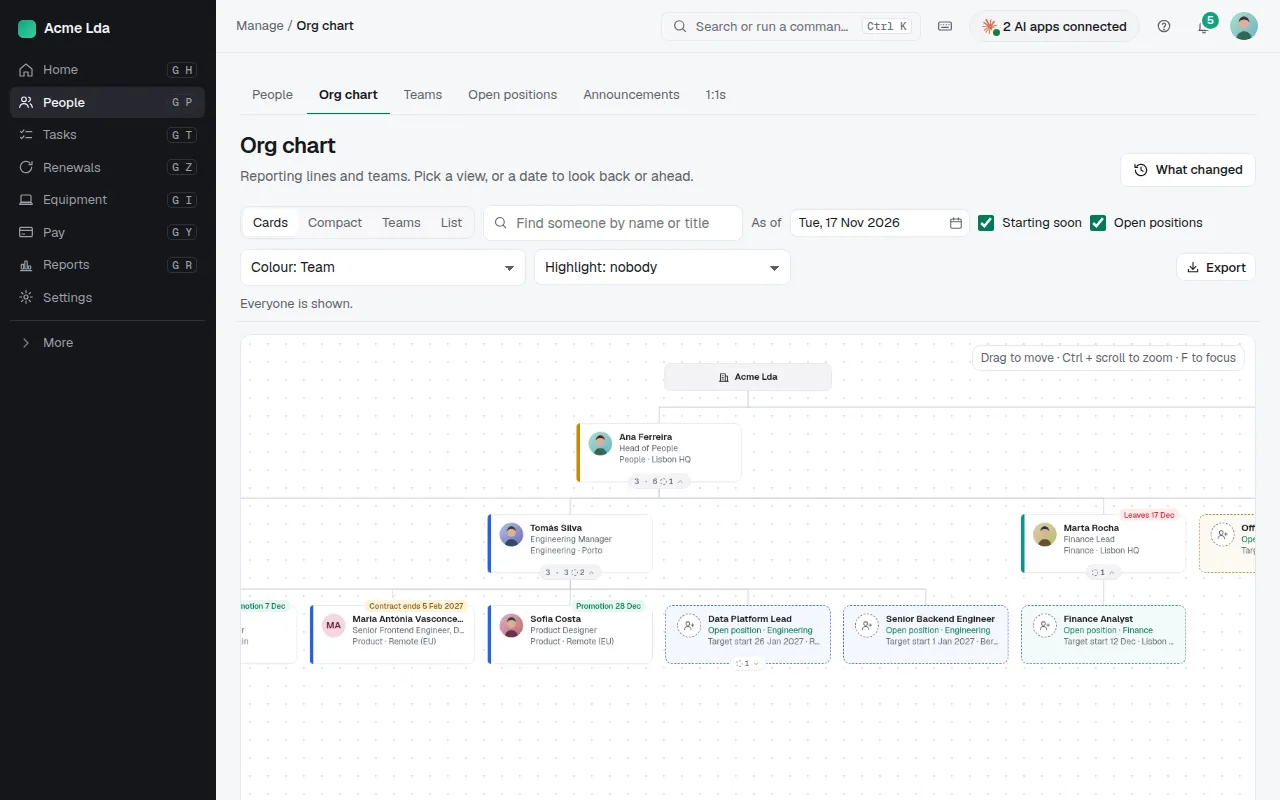
Open People → Org chart. Cards shows each person with their title, team and location; Compact fits more on the screen; Teams draws the teams and their leads; List is the same structure as a table. Colour the cards by team, location or one of your own fields, highlight a saved group, or search for someone. Click a person for a quick view without leaving the chart.
2. Look back or ahead
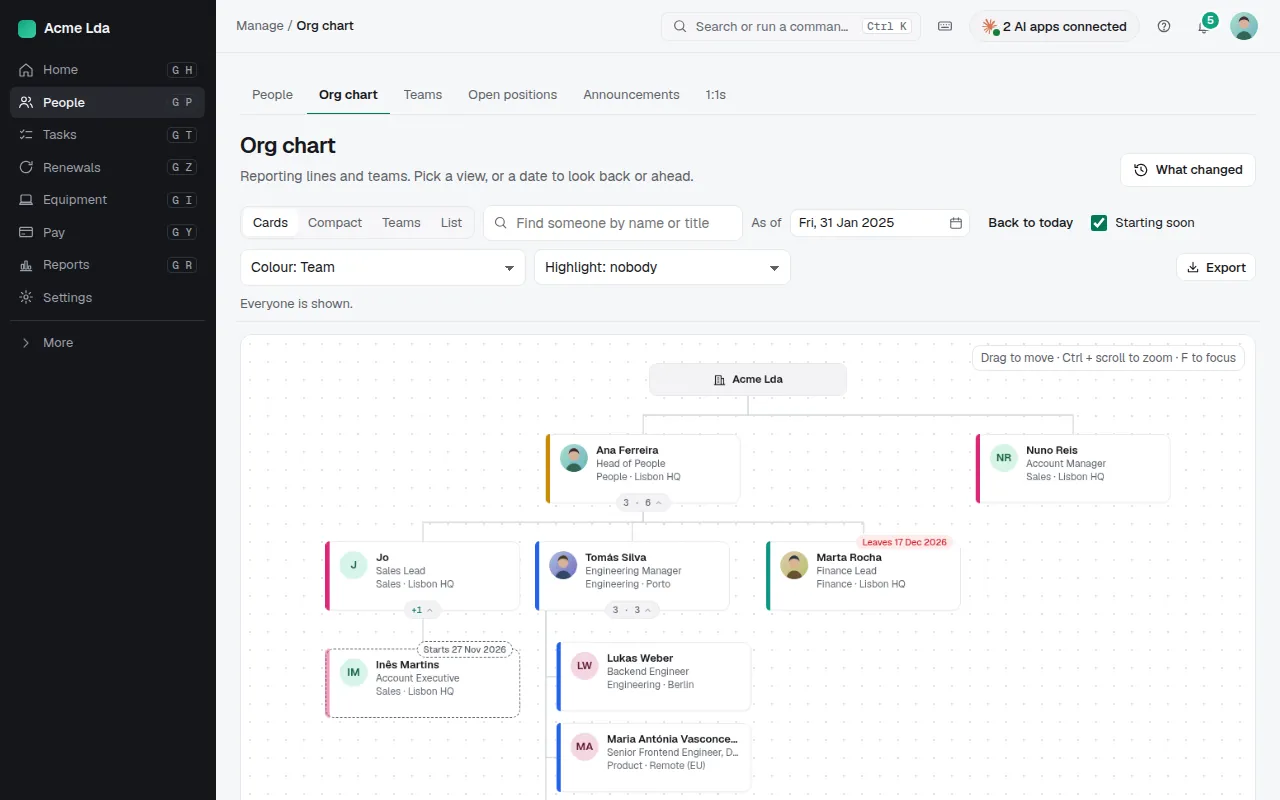
Change the As of date to see the chart as it was on that day, or as it will be: a future date includes the people starting by then and the job changes already scheduled. Cards also show what is coming, such as a promotion, a contract end or a last day. What changed lists the moves between two dates.
3. See open positions
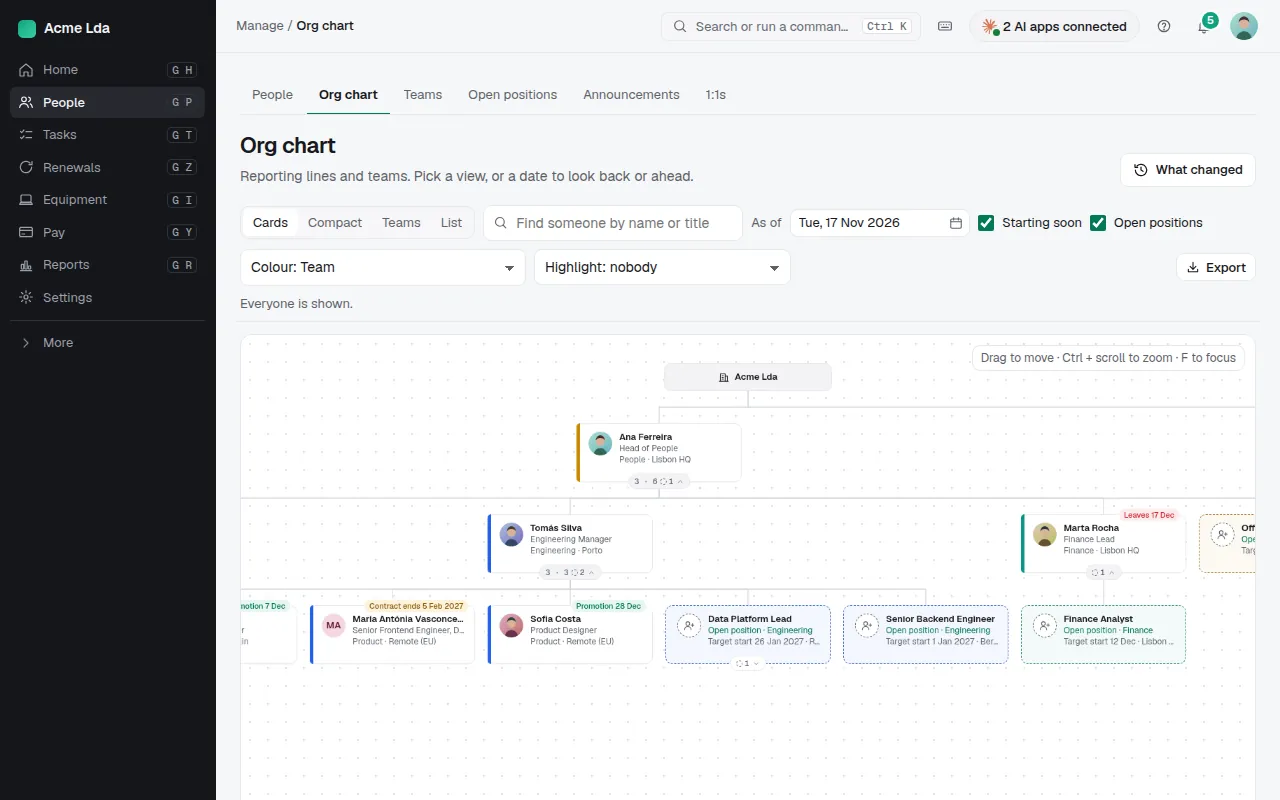
Open positions appear as dashed cards in the team and under the manager they belong to, with their target start date. Tick Open positions to show or hide them. Click one to see it, or to hire into it. You add and plan them under People → Open positions.
4. Export it
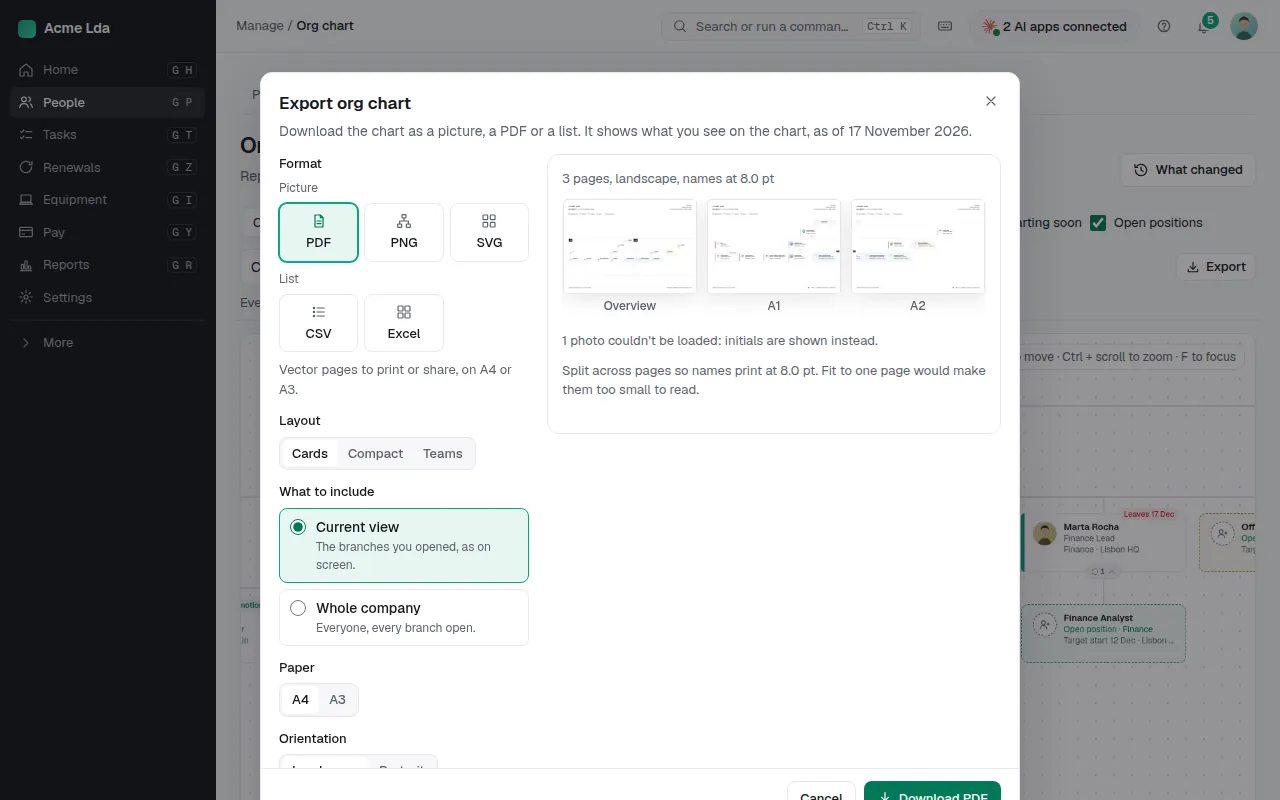
Choose Export to download the chart as a PDF, a PNG or SVG picture, or a CSV or Excel list. Export what you see on the screen or the whole company, on A4 or A3, on one page or split across pages. Job dates (leaving dates, contract ends and scheduled changes) are left out unless you tick Include job dates, so a file you share widely doesn't give them away.
Tips
- A big company? Collapse to a few levels, then open the branches you need, or Expand all.
- Tick Starting soon to show people who haven't started yet.
- ⌘K has Export org chart too.