How to track equipment
· 2 min read
Keep a register of laptops, phones, badges and cars: who has what and since when, people confirm what they received, and what comes back when someone leaves.

Knowing who has which laptop, phone or badge saves a scramble when someone leaves. Bizisy keeps one register: what each item is, who has it and since when, and what came back. People confirm what they received in My workspace, so the register matches reality.
1. Bring in what you have
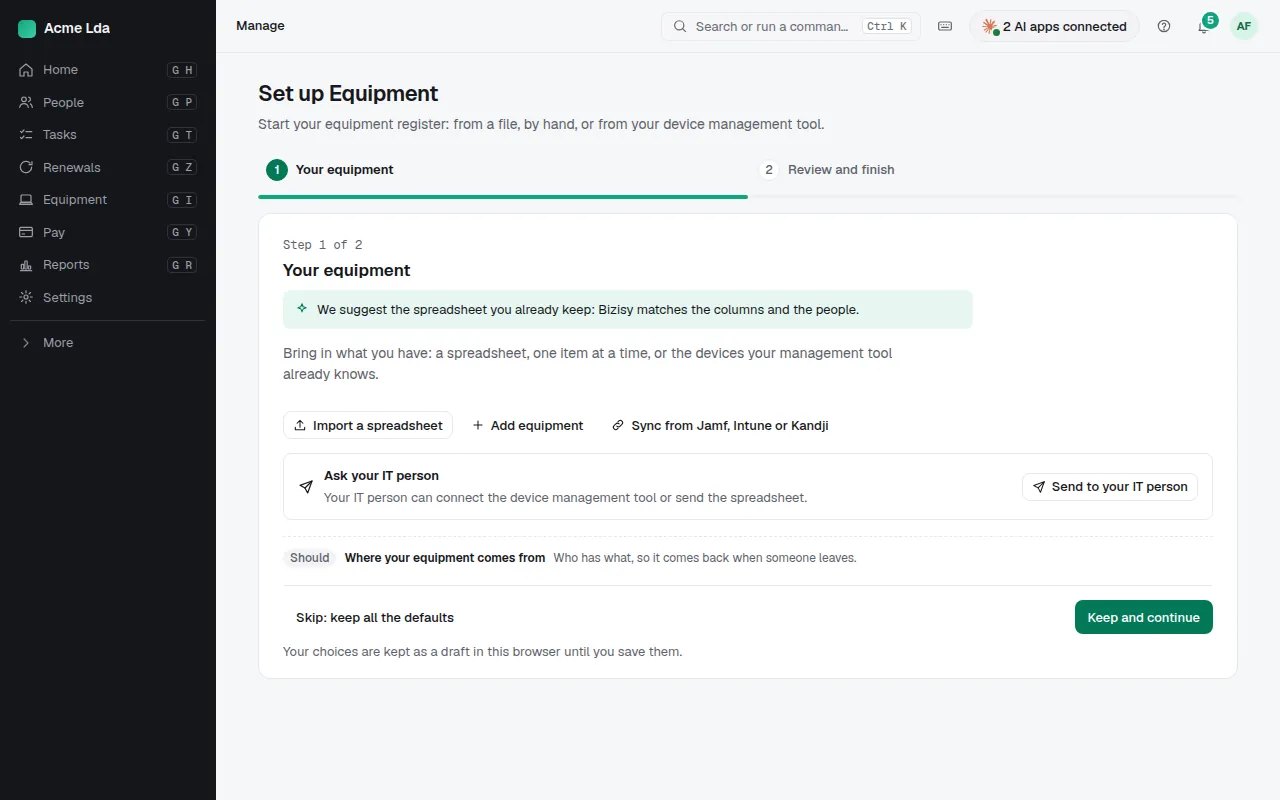
Switch on Equipment and its setup suggests the quickest start: import the spreadsheet you already keep (Bizisy matches the columns and the people), add items one at a time, or sync the devices your device management tool knows from Jamf, Intune or Kandji. Not sure? Send the setup to your IT person.
2. Add an item
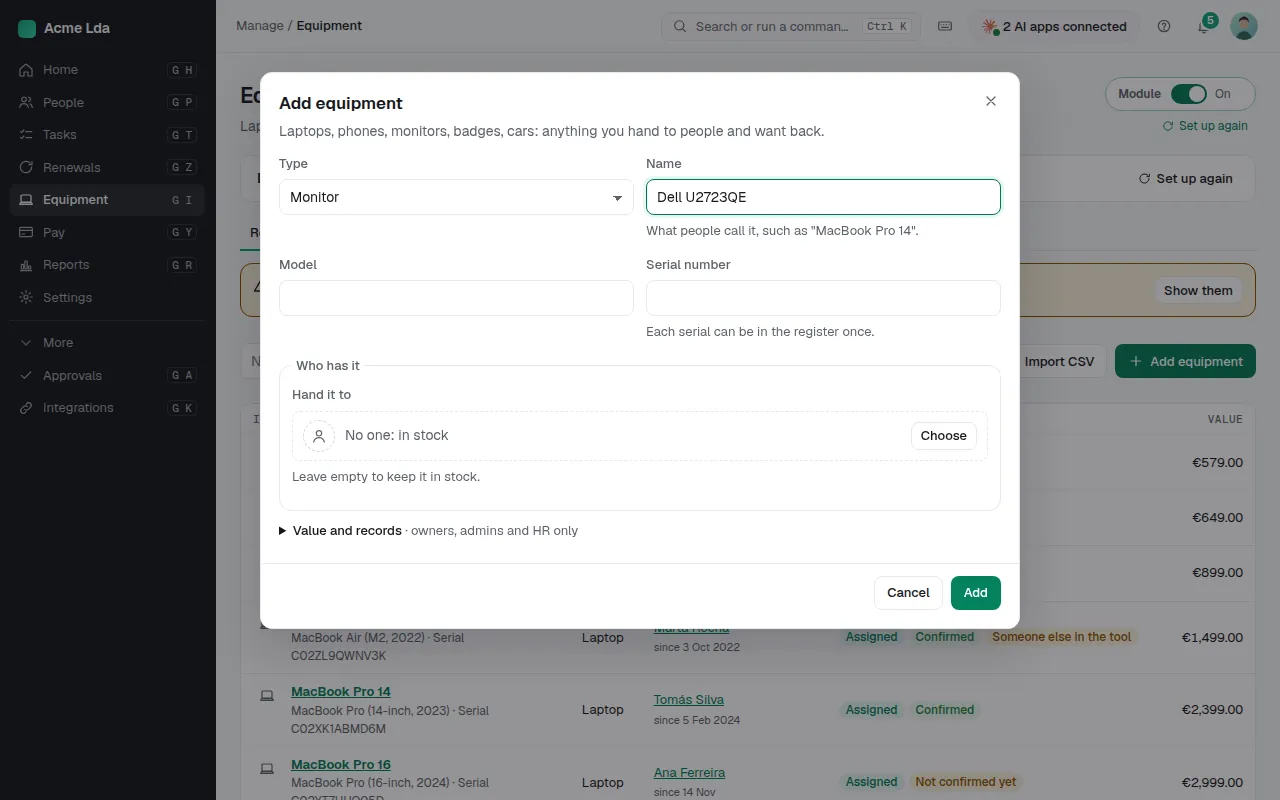
Choose Add equipment. Pick the type (laptop, phone, monitor, badge, car and more), give it a name people know it by, and add the model and serial number. Hand it to someone right away, or leave it empty to keep it in stock. Its value and purchase records are seen only by owners, admins and HR.
3. Hand it over
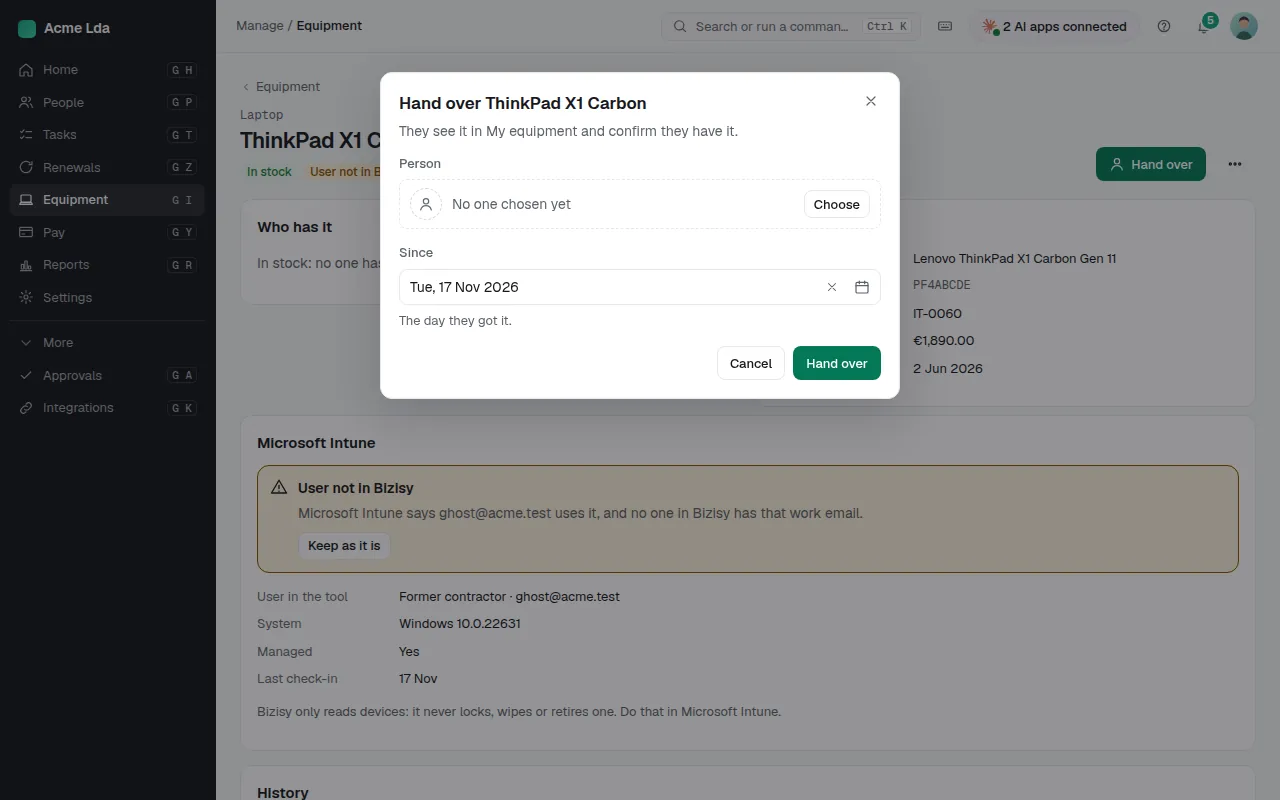
On an item in stock, choose Hand over, pick the person and the day they got it. They see it in My equipment and are asked to confirm they have it.
4. People confirm what they received
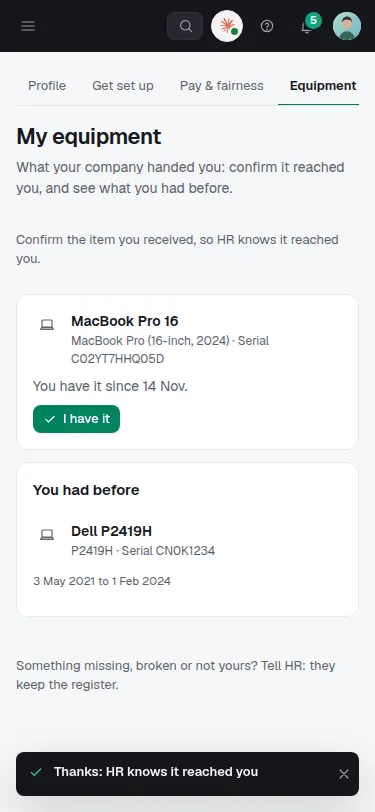
In My workspace → My equipment, the person taps I have it, and HR knows it reached them. They also see what they had before, and can tell HR when something is missing, broken or not theirs.
5. Keep the register up to date
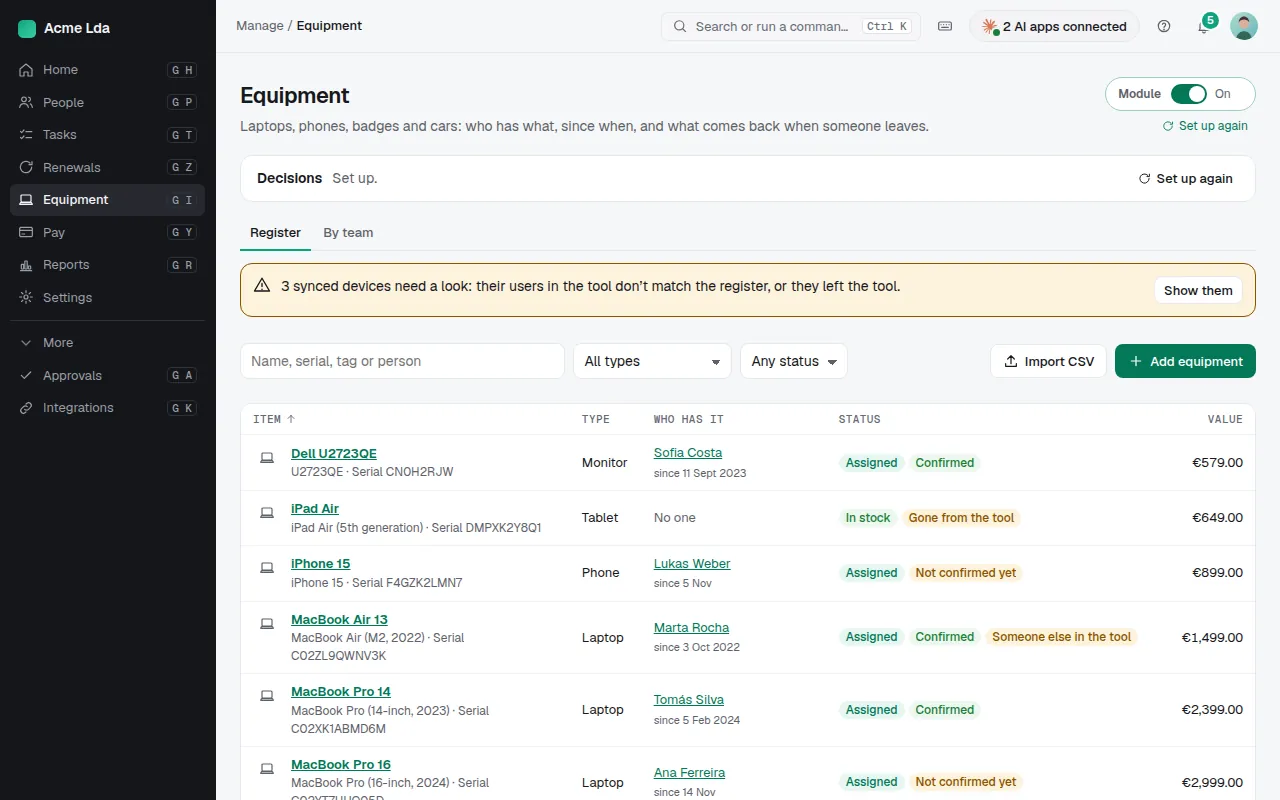
The register shows every item with who has it, since when and whether they confirmed it. Synced devices whose user in the tool doesn't match the register are flagged for a look. By team sums up what each team holds. When something comes back, choose Take back and note its condition.
Tips
- When someone leaves, their offboarding task to collect equipment ticks itself once they hold nothing.
- A serial number can be in the register only once, so the same laptop is never counted twice.
- ⌘K has Import equipment from a CSV.