How to set up time off
· 2 min read
Set up time off in a few minutes: public holidays per location, the yearly allowance, who approves, then let people book from their phone.
Time off in Bizisy starts filled in: the public holidays of each of your locations and an allowance that follows each country's law. The setup walks you through what it picked, so you only change what's different in your company. When you turn it on, people book days off from their phone and managers approve them in one click.
1. Holidays per location
Open Time off and start the setup. Bizisy lists the public holidays for each location you have, by country and region. Keep them, or add the days your company closes, like a day between a holiday and the weekend.
2. Allowance
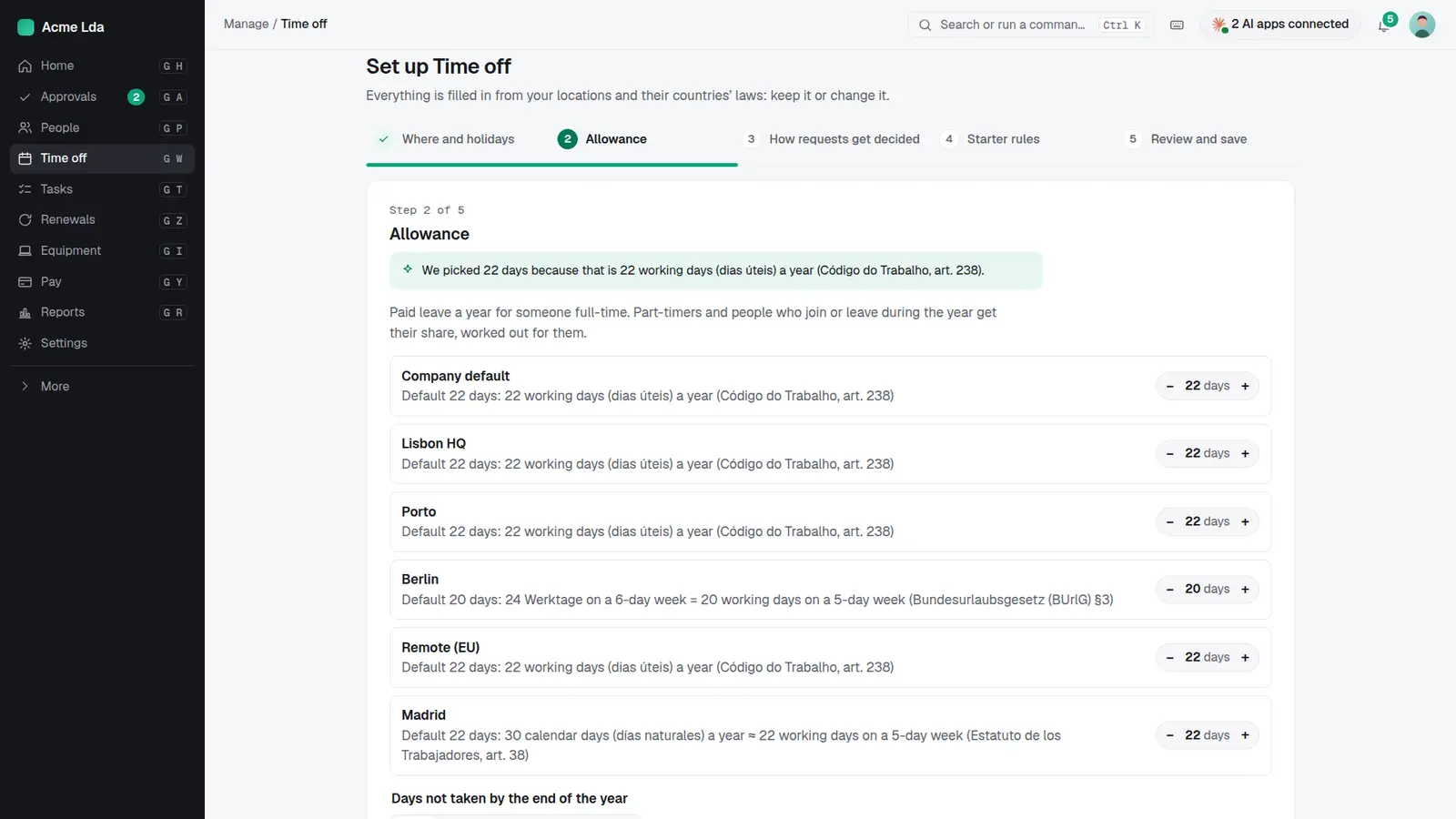
Each location gets the yearly days off its country's law gives, with the article it comes from. Raise a number if you give more. Part-timers and people who join or leave during the year get their share, worked out for them.
3. Who approves
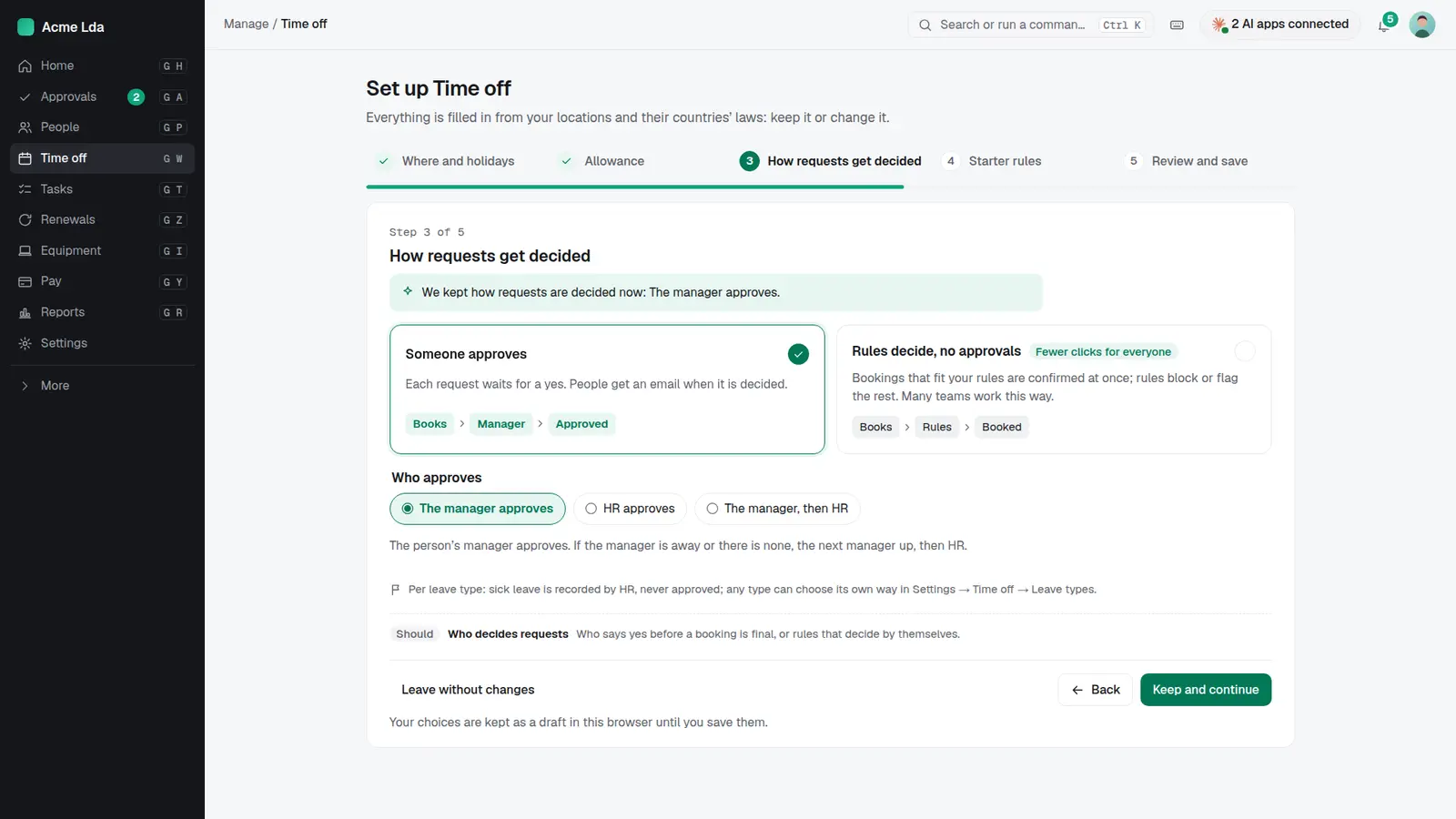
Choose whether someone approves each request (the manager, HR, or the manager then HR) or whether bookings that fit your rules are confirmed at once. If a manager is away, the request goes to the next manager up, then HR.
4. Review and turn on
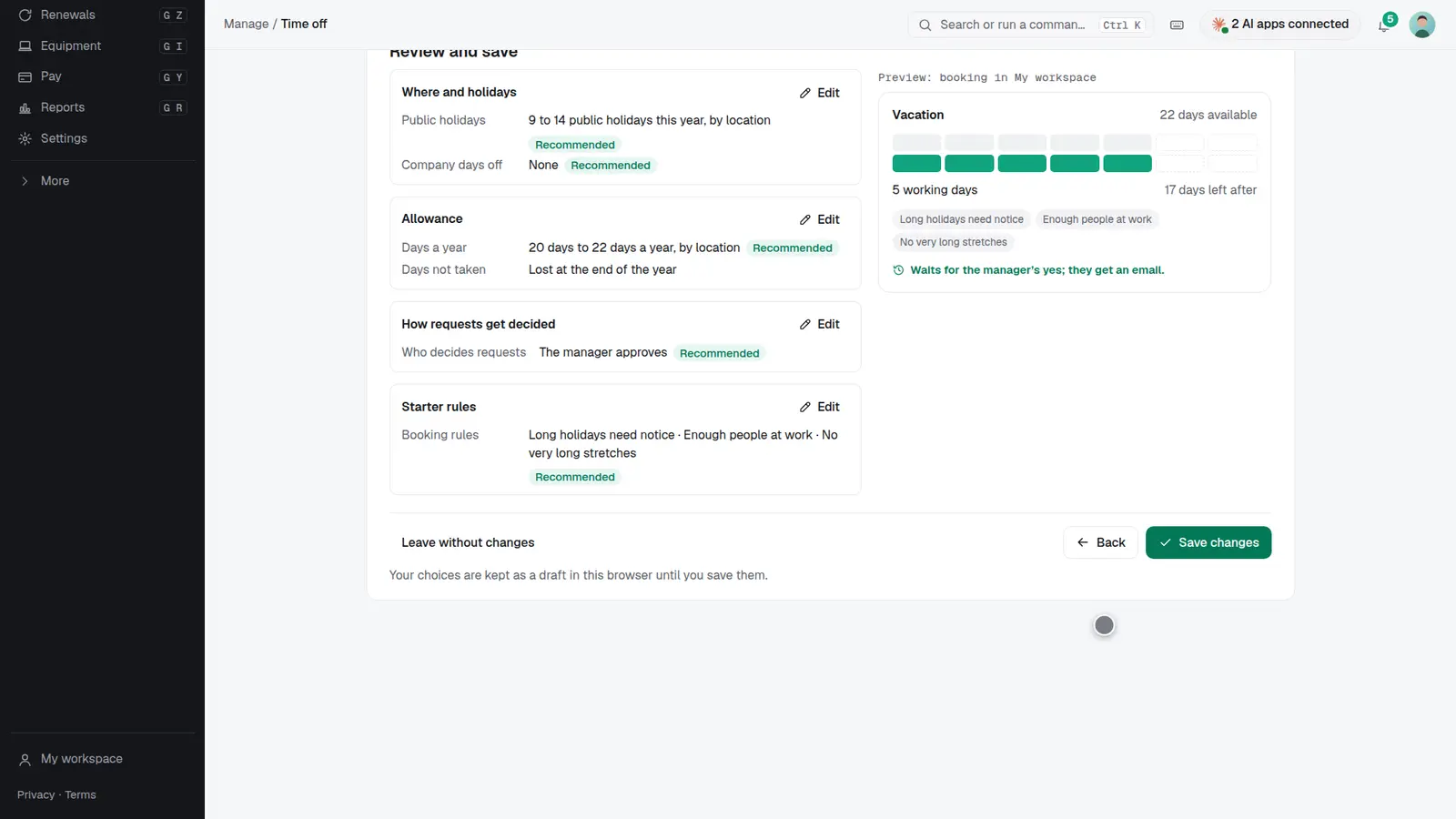
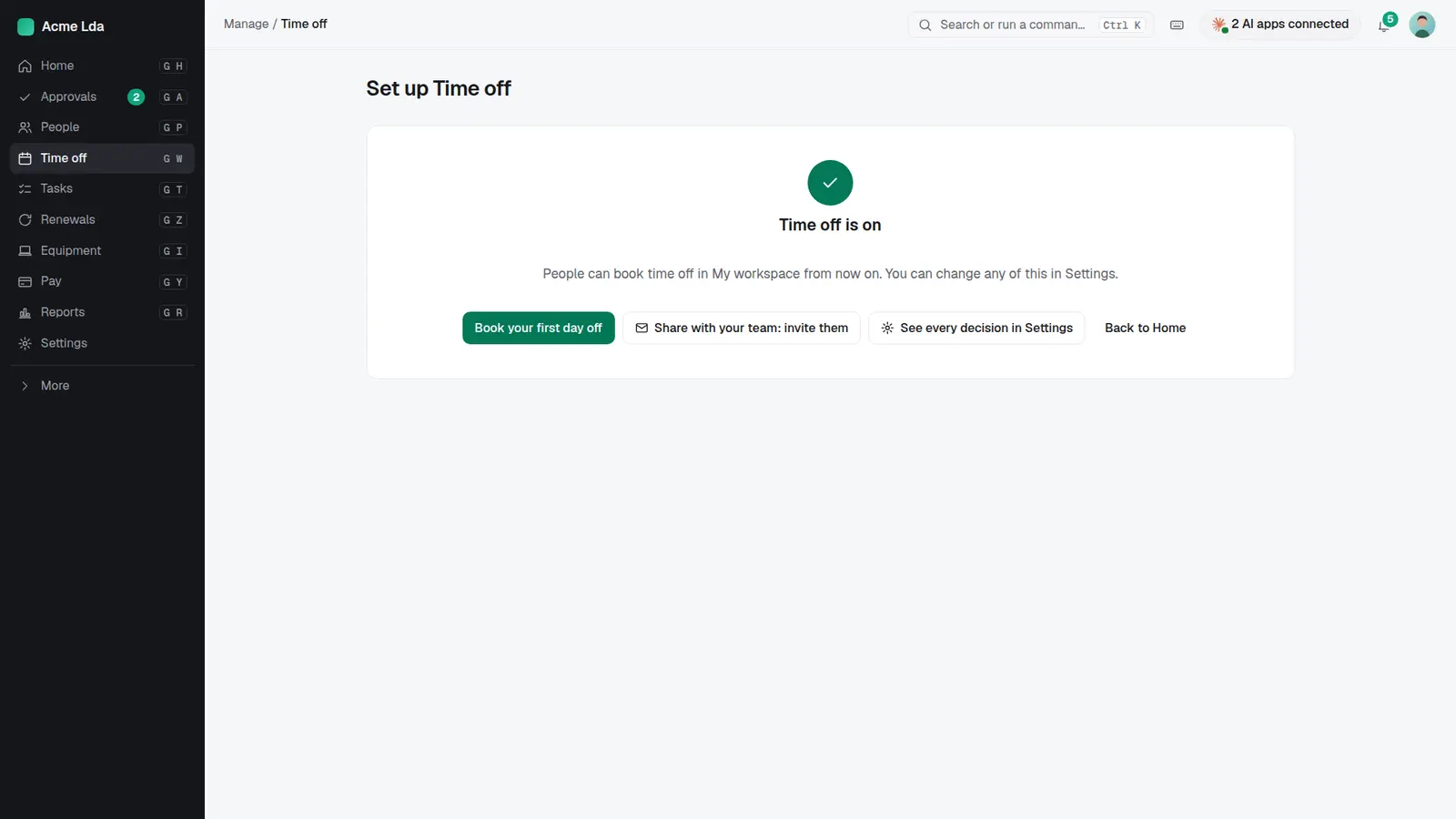
The last step shows every choice on one page, with a preview of what people will see when they book. Press Save changes and time off is on.
5. Booking from a phone
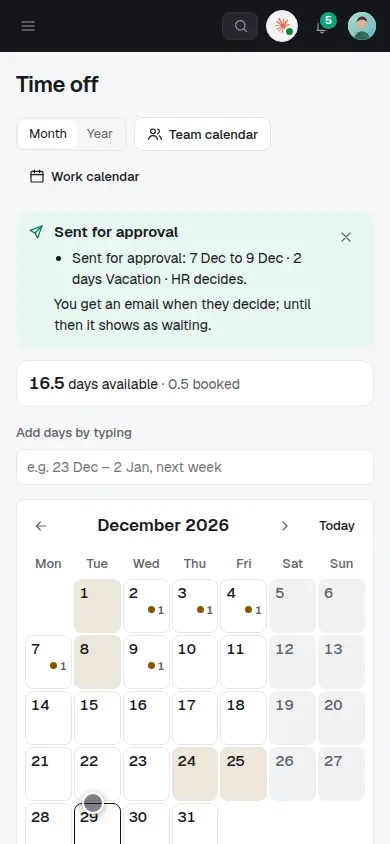
People open My workspace on their phone, pick the days or type them ("23 Dec – 2 Jan"), and send the request. They see their balance before and after, and get an email when it's decided.
6. Approving
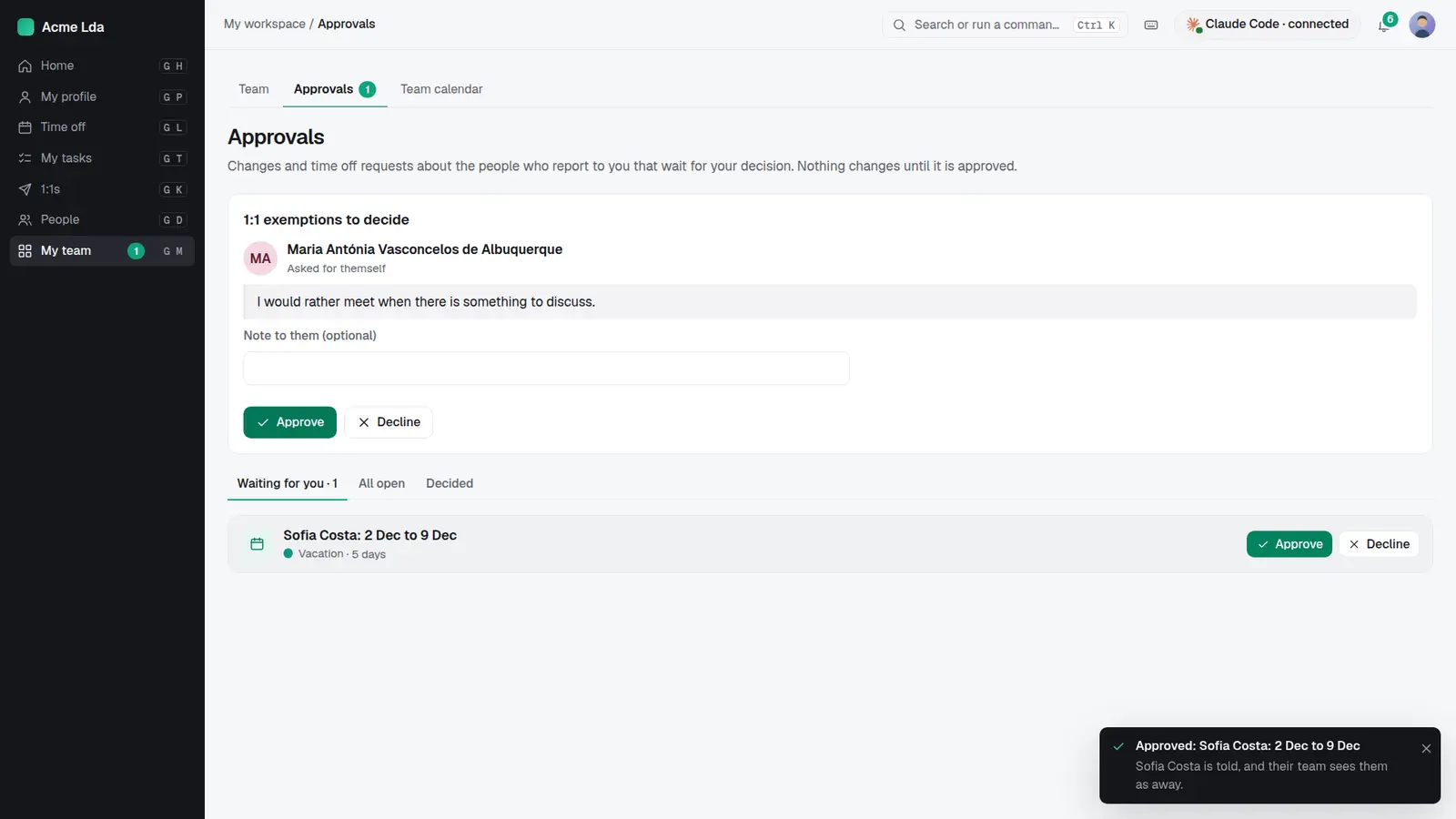
The approver sees the request with the dates and the days it uses, and approves or declines it in one click. The person is told, and their team sees them as away.
7. The team calendar
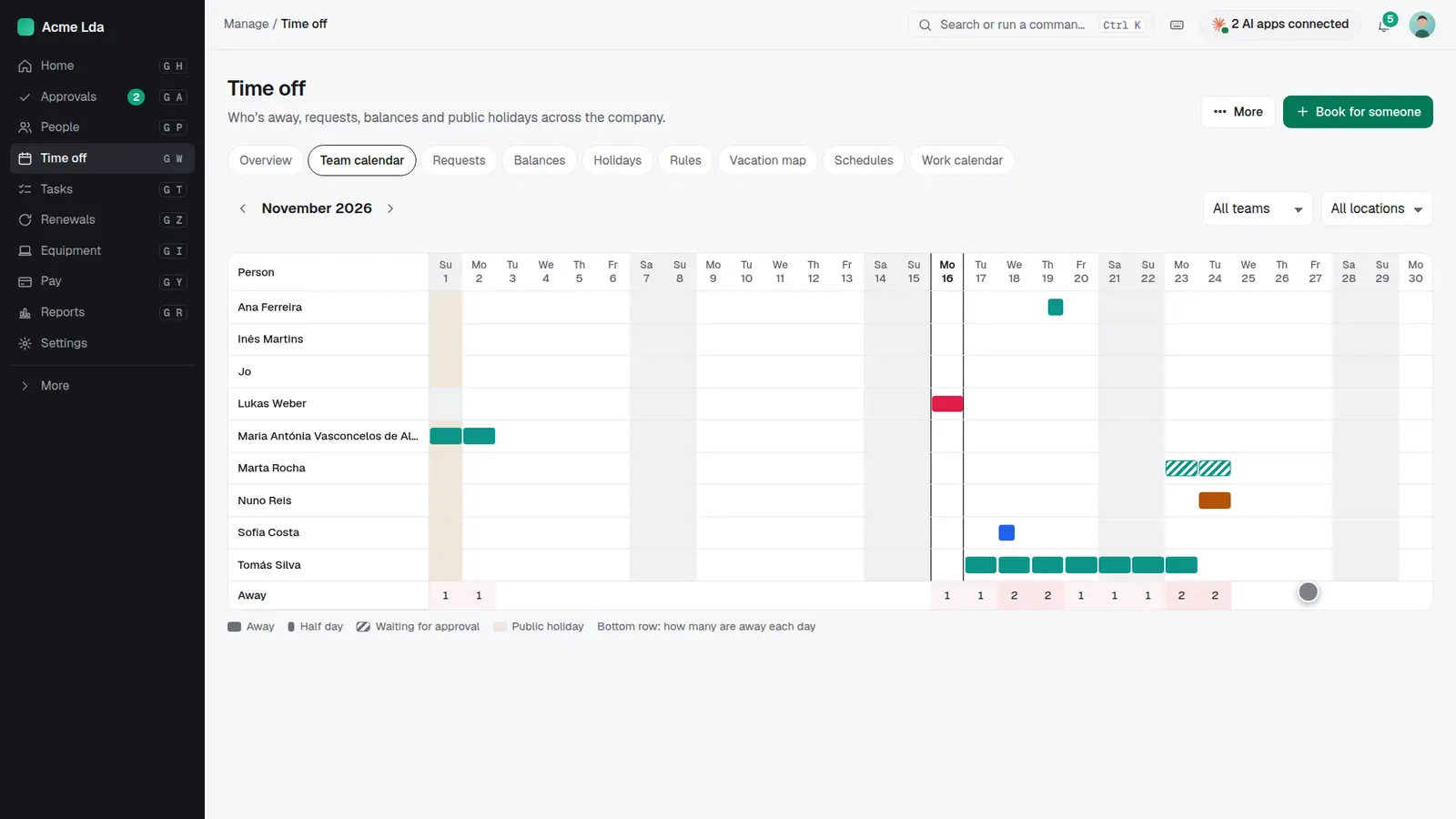
The team calendar shows who's away each day, requests still waiting, half days and public holidays, by team and location.
Tips
- Change any setup choice later in Settings → Time off; the setup is just the quickest way to start.
- Sick leave is recorded by HR and never needs approval, so it stays private.
- Book for someone from the Time off page when a person can't do it themselves.