How to approve or decline time off
· 1 min read
Approve or decline time off requests in one click, from Manage or My workspace, with the team calendar to see who else is away.

When someone books time off, the request goes to whoever your company chose: their manager, HR, or the manager and then HR. Approvers decide in one click, with the team's calendar right there, and the person is told at once.
1. See what waits for you
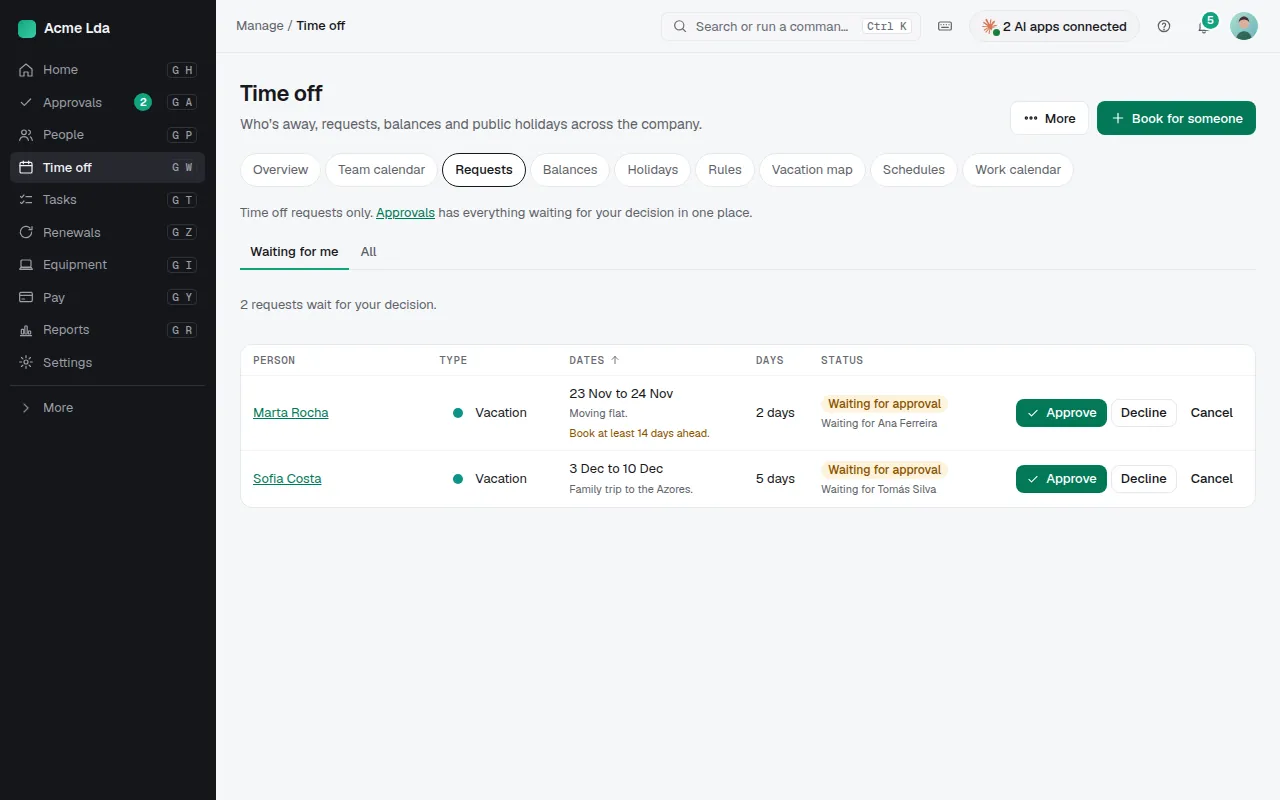
HR and owners find requests in Manage → Time off → Requests; managers find their team's in My workspace → Approvals. Each request shows the person, the days, the leave type and what's left of their balance. Requests also appear on Home and in your notifications.
2. Approve, or decline with a reason
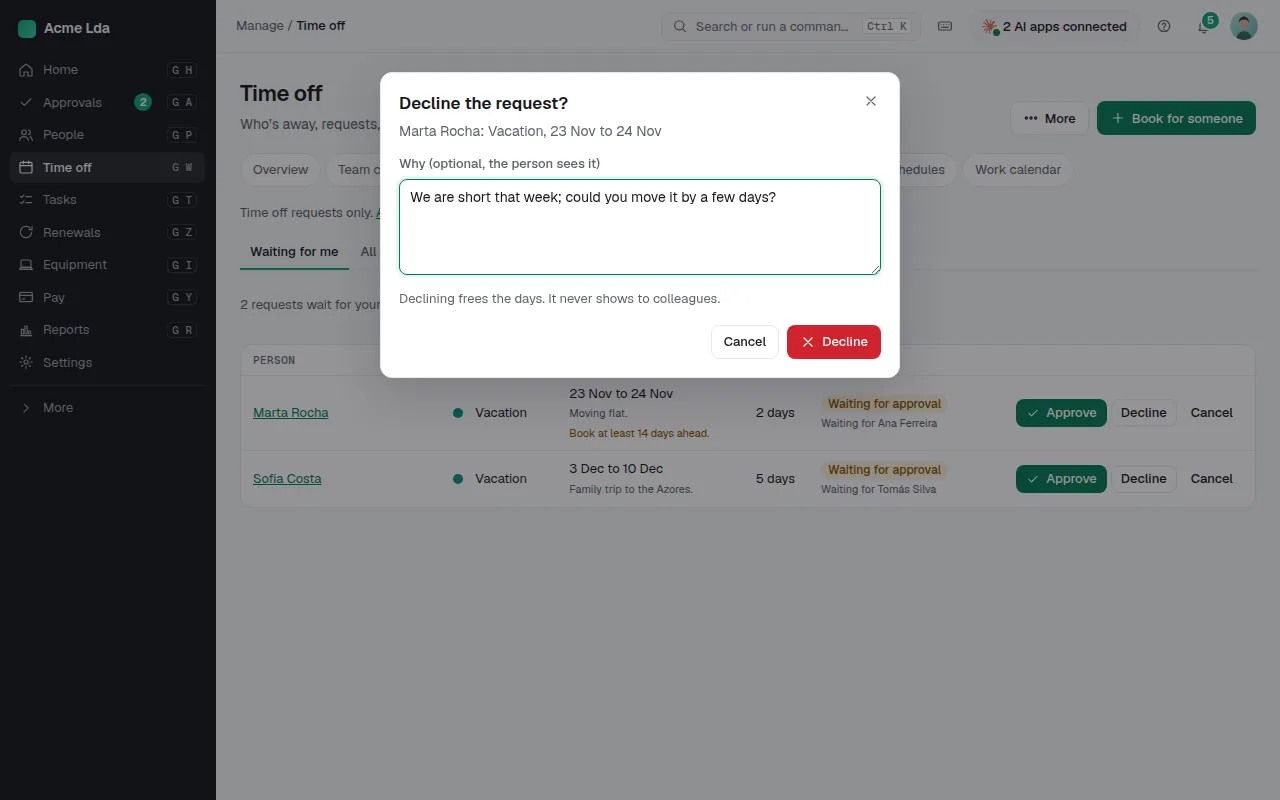
Choose Approve, or Decline and write why if you like: the person sees your reason, so suggest another date when you can. If a manager is away, the request goes to the next manager up, then HR, so nobody waits.
3. Check who else is away
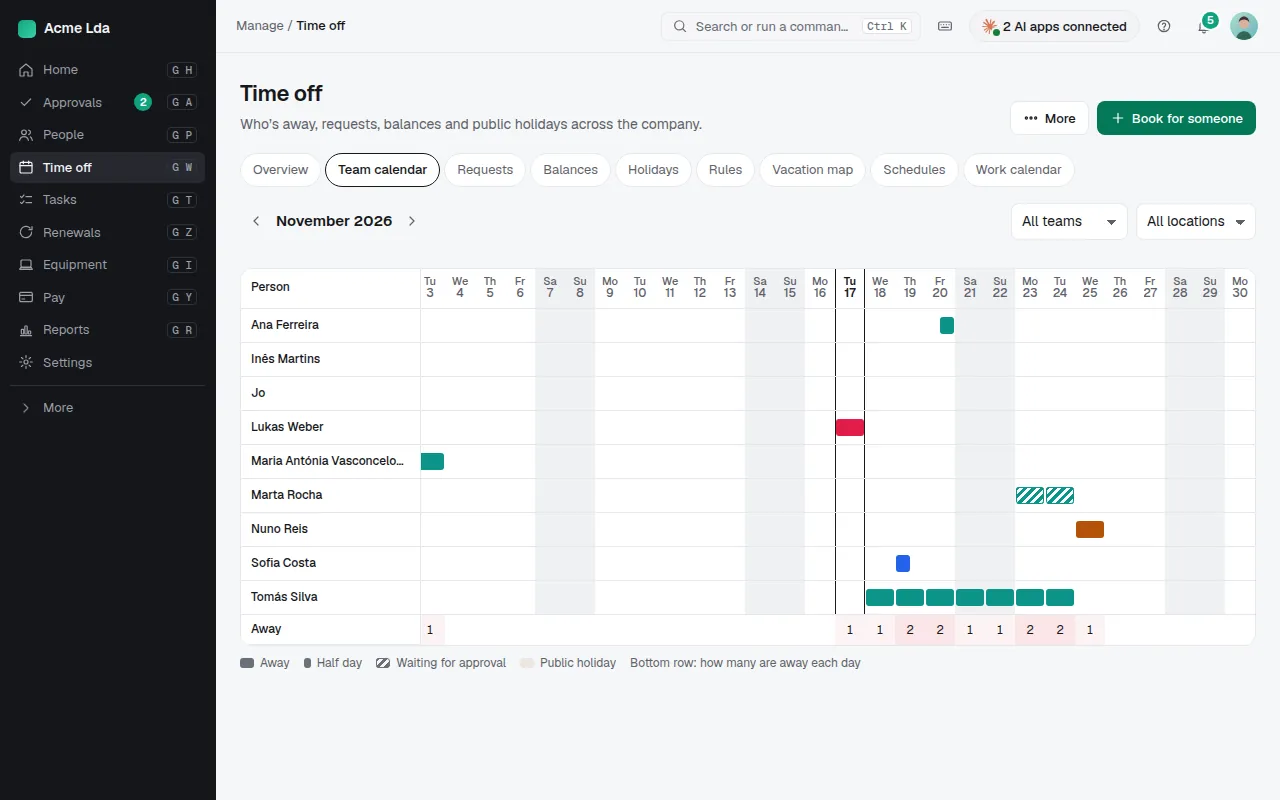
Time off → Calendar shows who is away on each day, by team or location. Managers have the same view of their team in My workspace → Time off → Team.
Tips
- Choose who approves in Settings → Time off → Approvals: someone approves each request, or bookings that fit your rules are confirmed at once.
- HR can book time off for someone, or for several people at once, from Requests.
- Approvers see the leave type; colleagues only see that someone is away.