How to plan open positions
· 1 min read
Plan the roles you're going to hire for: who they report to, when they should start and the budget; see them on the org chart and in Reports, and hire into them.

An open position is a role you plan to fill: in which team, reporting to whom, from when, and with what budget. Positions show on the org chart as dashed cards, in Reports as planned headcount and on Home, so everyone planning sees the same picture.
1. Create a position
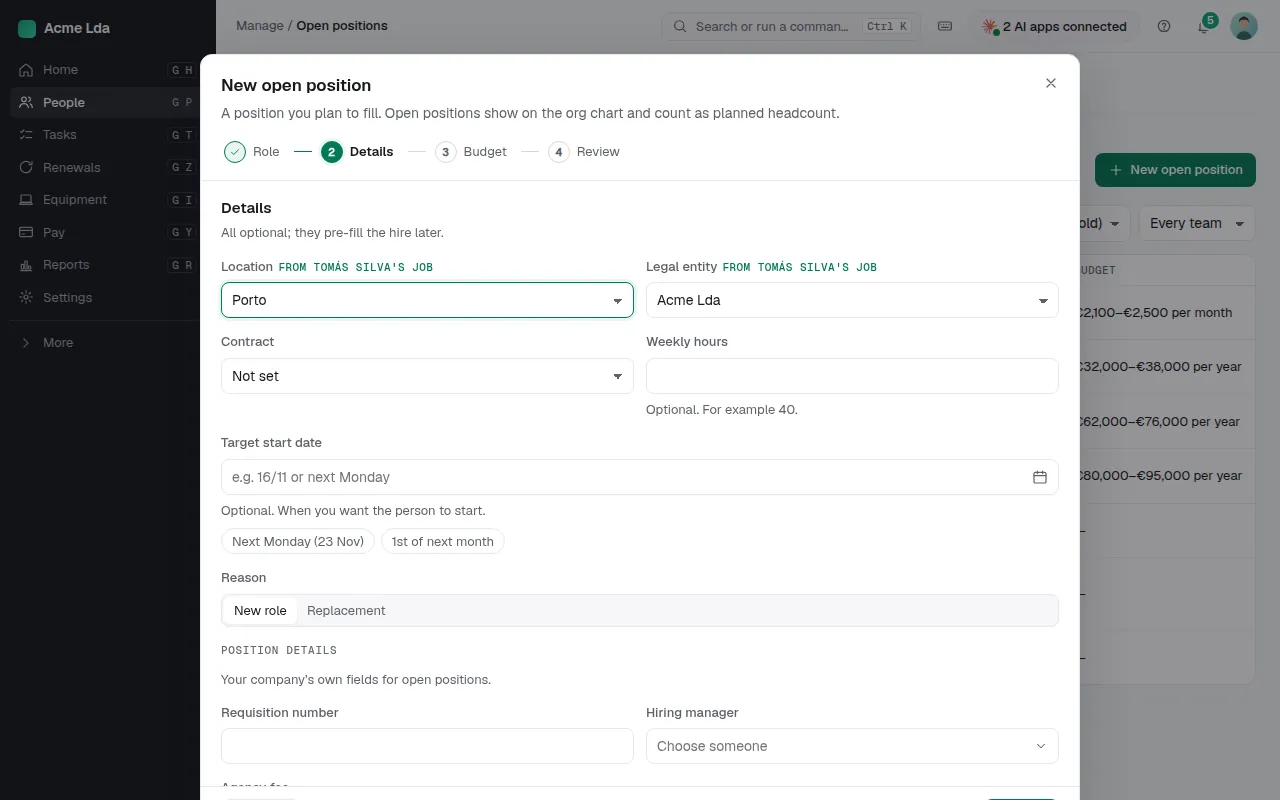
Open People → Open positions and choose New open position. Give it a title, the team and who it reports to, and a target start date. Save it as a draft while it's an idea, or open it when it's agreed.
2. Set the budget
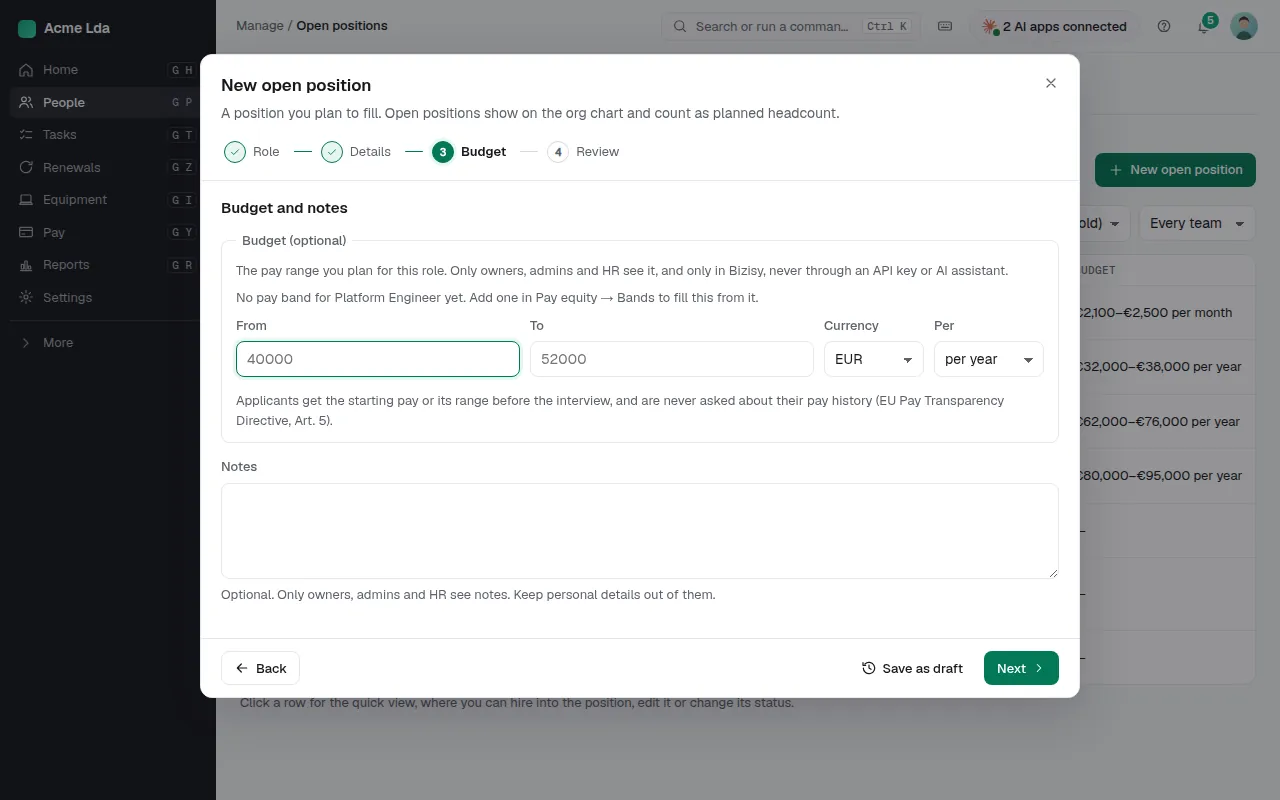
Add the budget for the role; only owners, admins and HR see it. Open positions count as planned headcount in Reports.
3. Follow and fill it
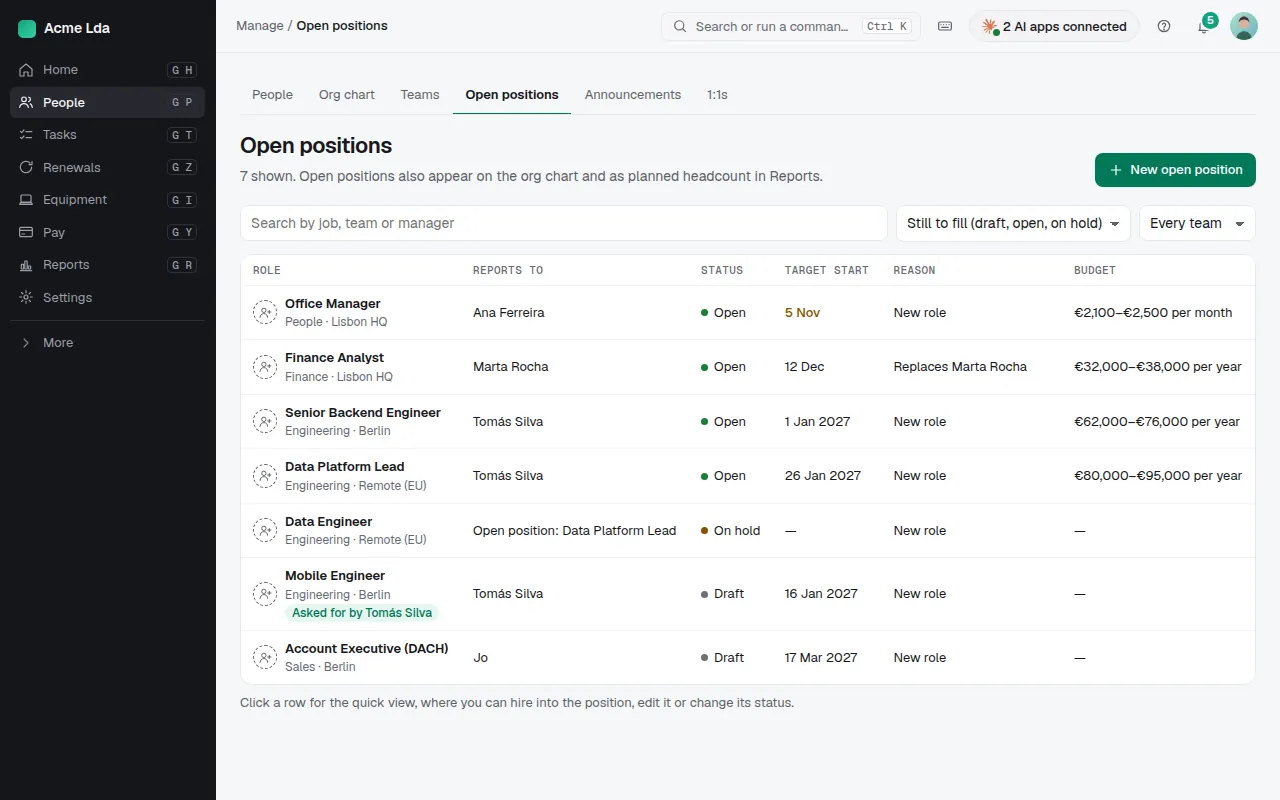
The list shows what's still to fill (draft, open or on hold) and flags positions past their target start. Click a row for the quick view, where you can change its status, edit it, or Hire into this position. With Hiring on, a position becomes a job you post.
Tips
- When someone leaves, tick Open a position to replace them to add their job here at once.
- Big changes to teams? Draft them as a reorg plan first, under People → Teams → Reorg plans.