How to plan a shift rota
· 2 min read
Plan a week of shifts: fill it from last week, let the rule checks catch rest and notice problems, publish, and see who's in right now.
A rota in Bizisy is a week per team. You start from last week, adjust, and the rule checks tell you what the law or your people would object to before anyone sees it. When you publish, everyone gets their shifts in My workspace, and on the day they clock in from their phone.
1. Open the week
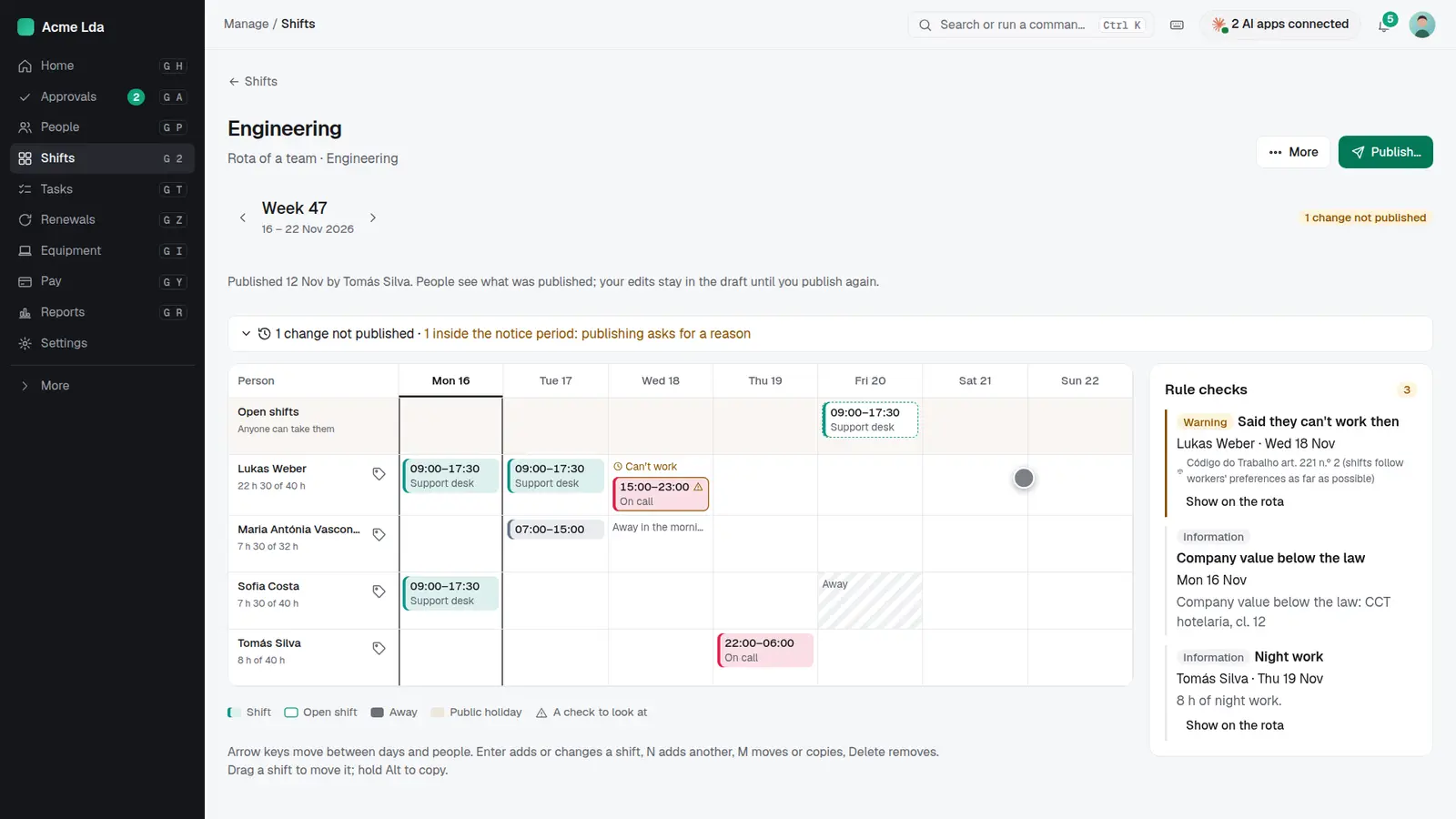
Open Shifts, pick the team and the week. Each row is a person, with the hours planned against their contract. Open shifts at the top are ones anyone in the team can take.
2. Fill from last week and adjust
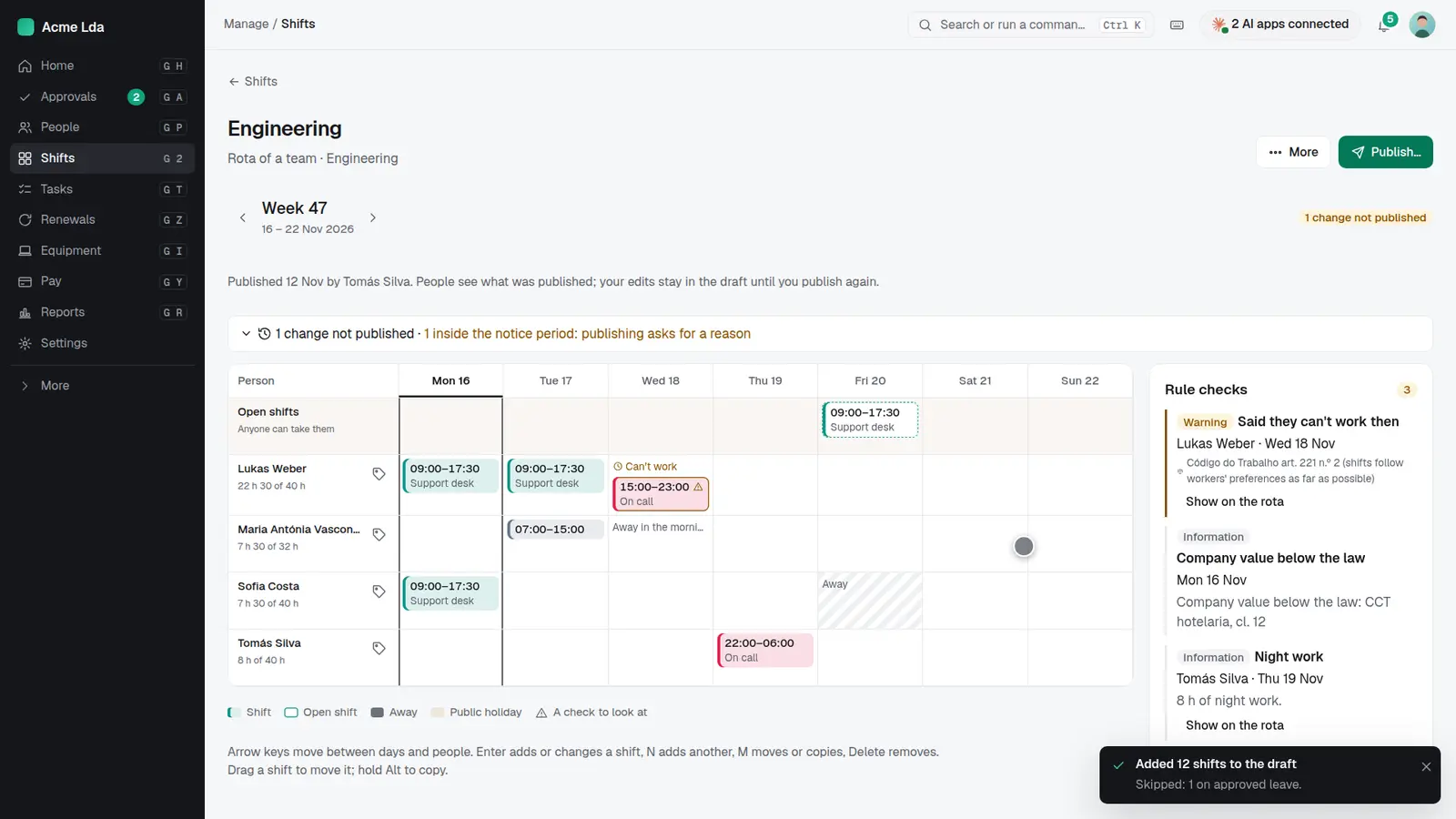
Fill the week from last week in one go. Bizisy skips days people have approved leave. Then move, copy or change shifts with the mouse or the keyboard.
3. Check the rules
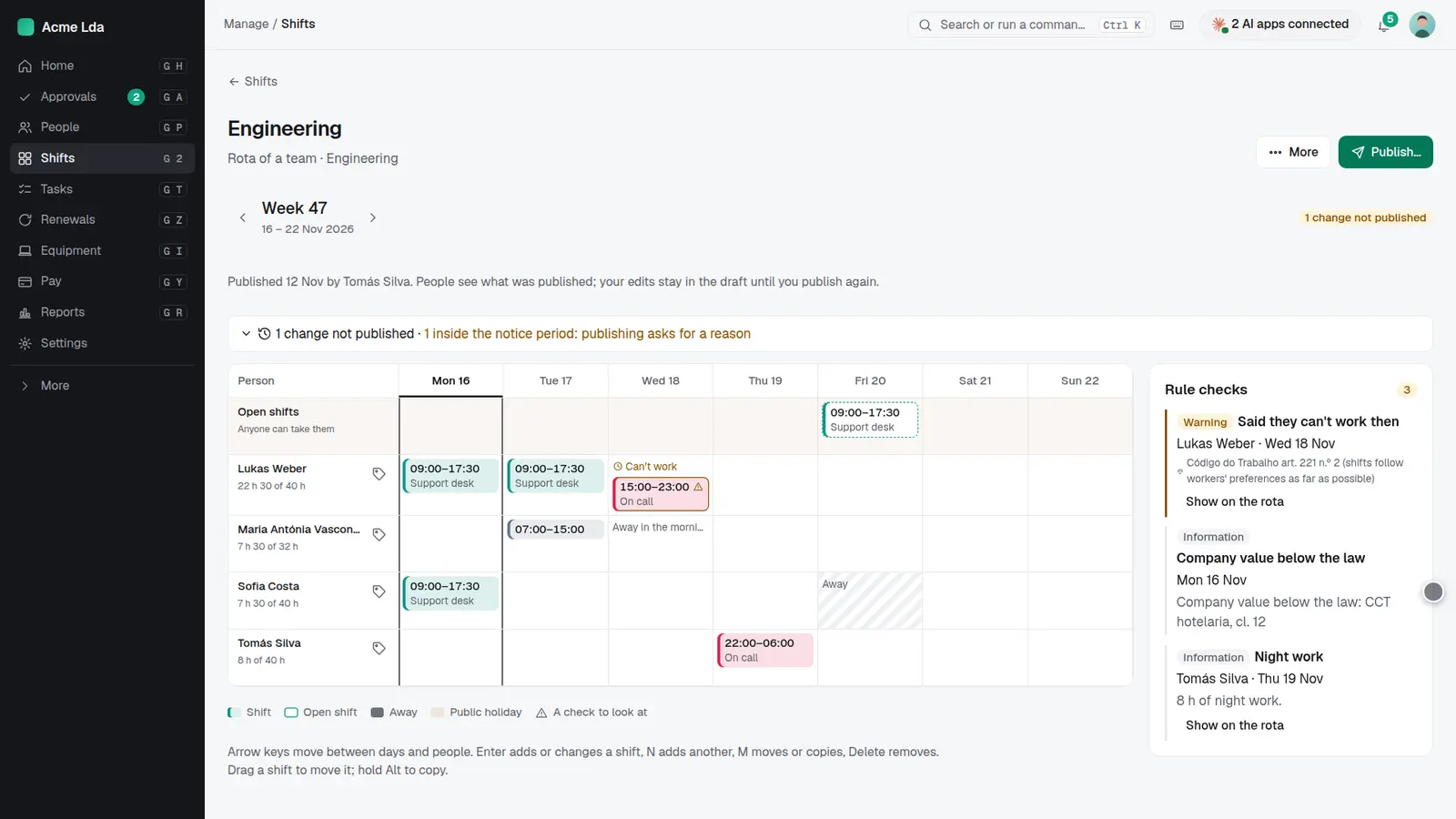
The rule checks follow each country's law: the daily rest between two working days, the longest day, the 48-hour week and the notice people must get. They also show when someone said they can't work then. Each check links to the shift it's about.
4. Publish
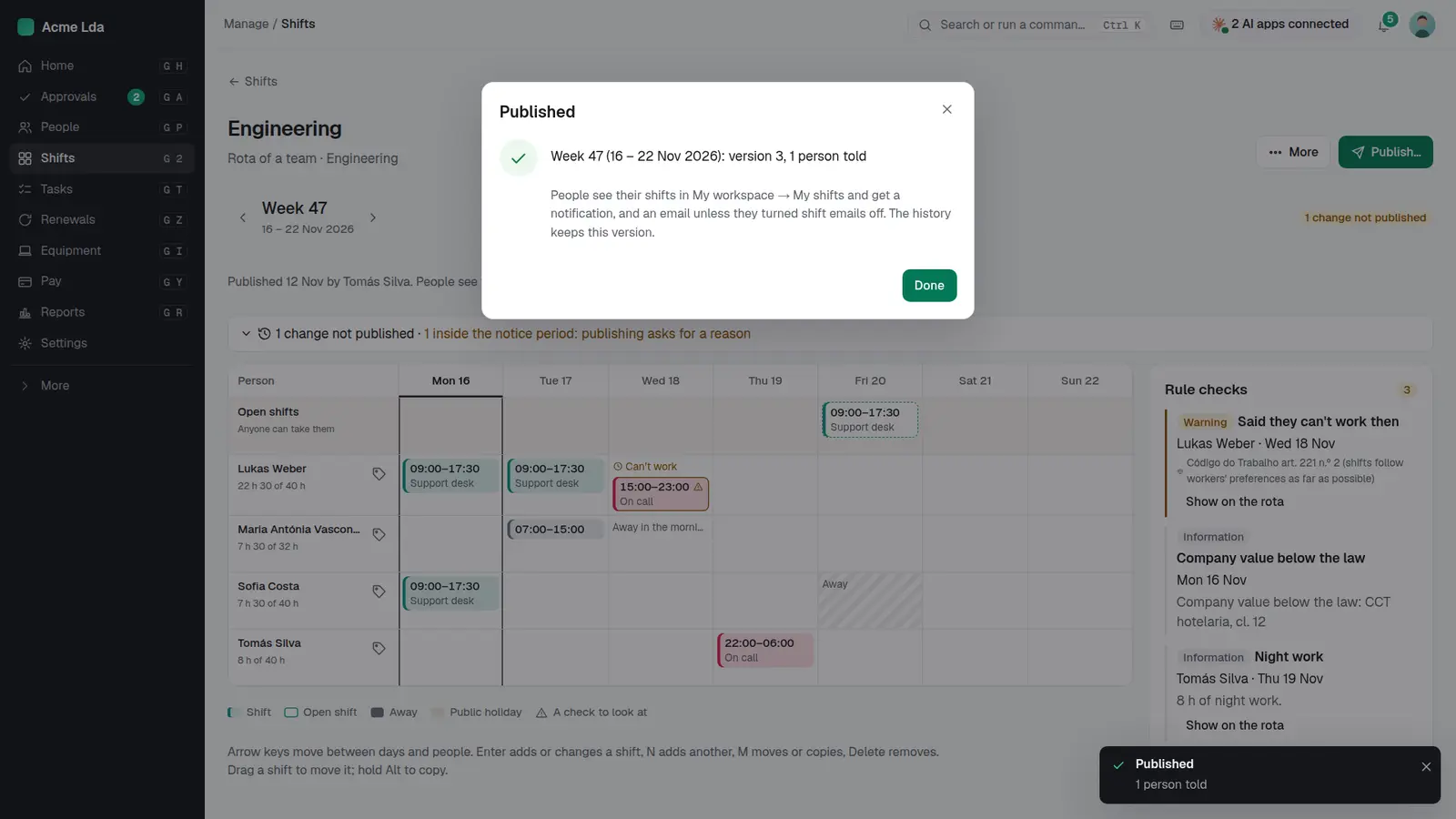
Press Publish. People see their shifts in My workspace and get a notification. If a change falls inside the notice period, publishing asks you for a reason, and the history keeps every version.
5. Swap and clock in on site
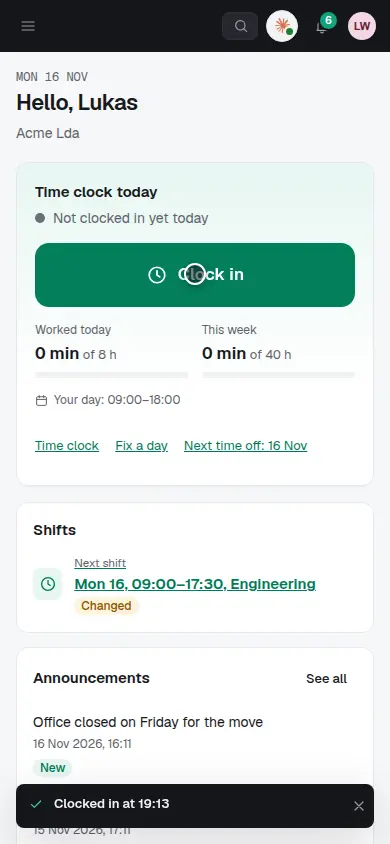
People can ask to swap or give away a shift, and a manager approves it. On the day, they clock in from My workspace on their phone, or on a shared tablet at the site.
6. Who's in now
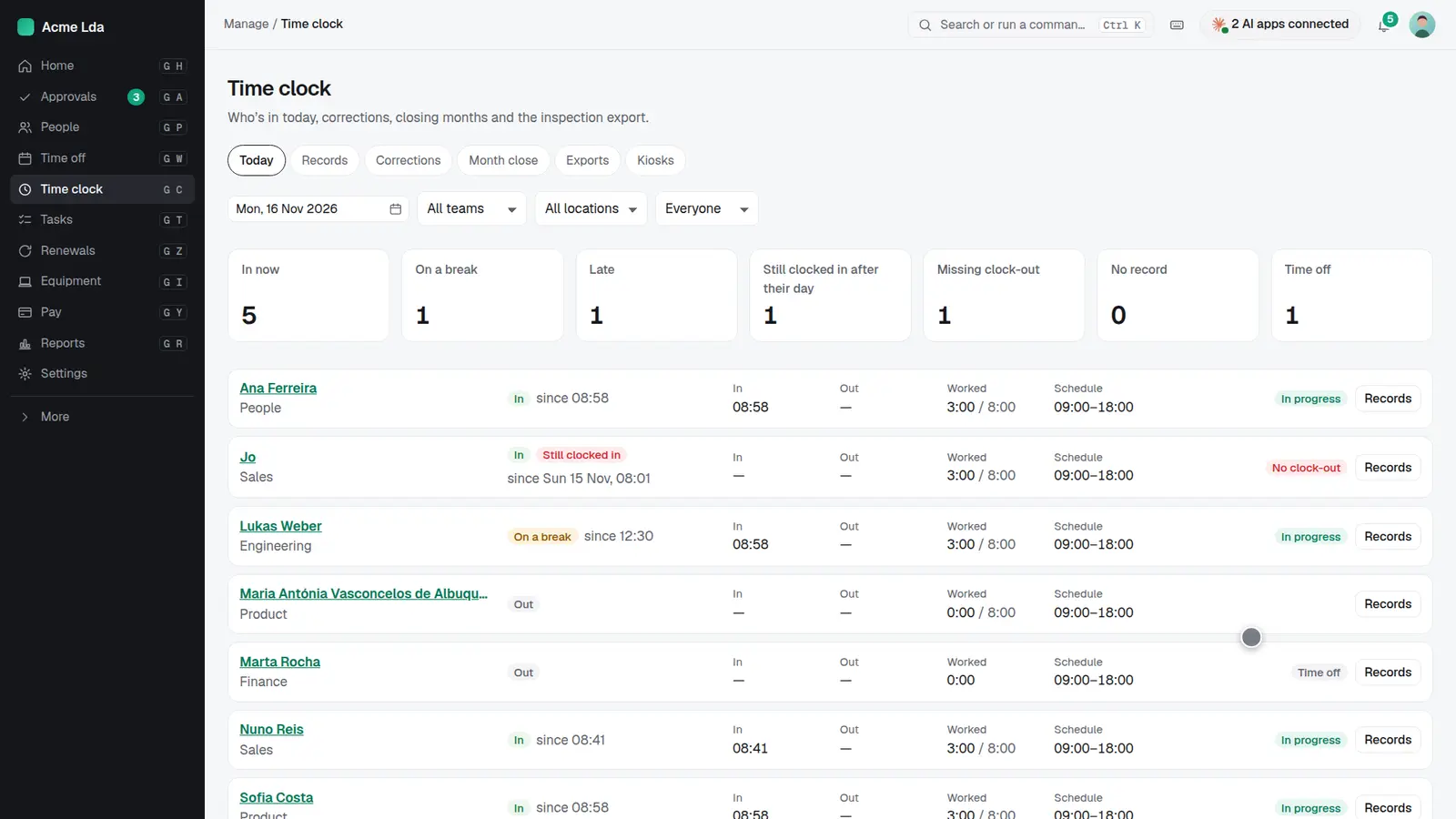
The time clock shows who's in, on a break, late or still clocked in from yesterday, against each person's schedule.
Tips
- Use the keyboard to plan fast: arrow keys move between days and people, Enter adds or changes a shift.
- Set the notice days your company gives in the shift settings where the law leaves it to you.
- Corrections to clock-ins need a reason and stay in the records for an inspection.