How to offboard someone
· 2 min read
Mark someone as leaving: their last day and why, a new manager for their reports, what happens to their login, a replacement position, and the offboarding checklist and equipment.

When someone leaves, a lot has to happen on the right day: their reports need a new manager, their access has to end, their equipment comes back, and maybe the job is hired again. In Bizisy you mark them as leaving once, and the rest follows from their last day.
1. Their last day and why
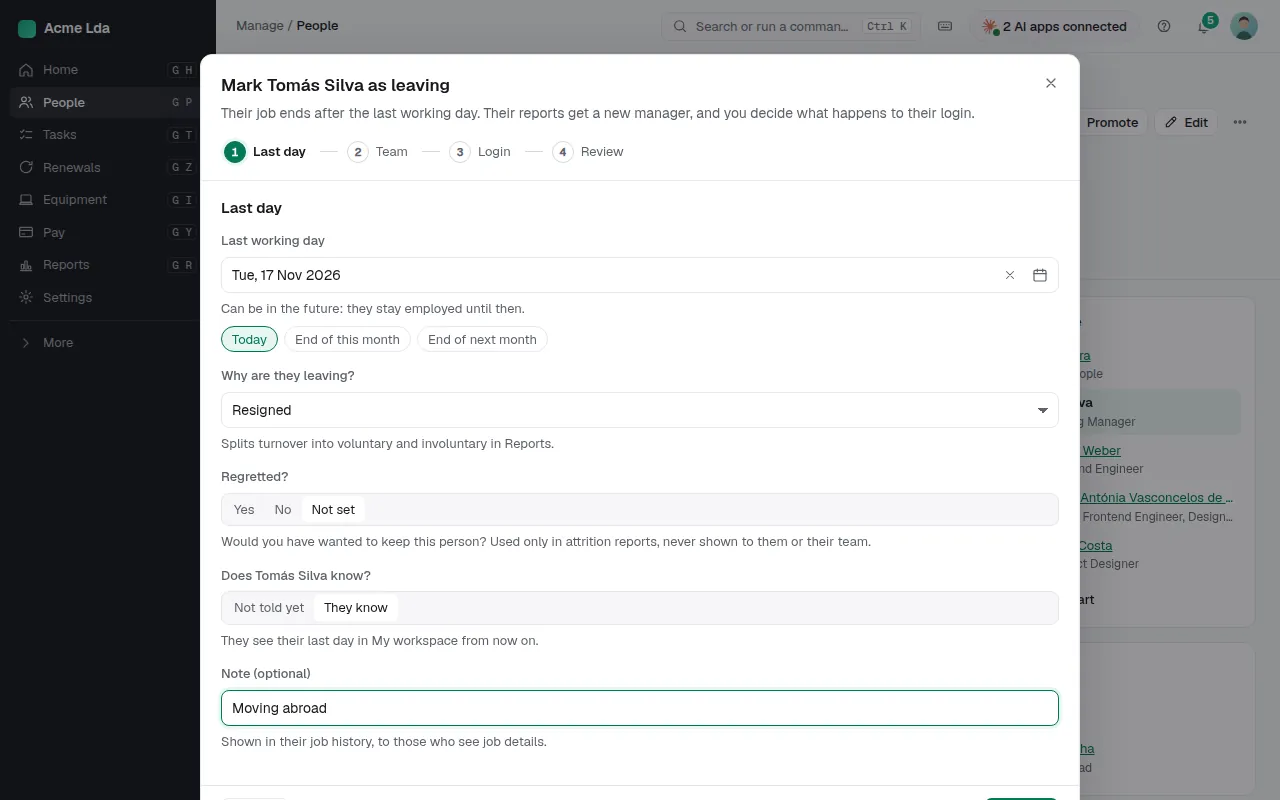
Open the person, then More actions → Mark as leaving. Enter their last working day (today, a date in the future, or one of the shortcuts) and why they are leaving: resignation, dismissal, end of contract and so on. This splits turnover into voluntary and involuntary in Reports. You can say whether you'd have wanted to keep them (used only in attrition reports, never shown to them or their team), whether they already know, and add a note.
2. A new manager for their reports
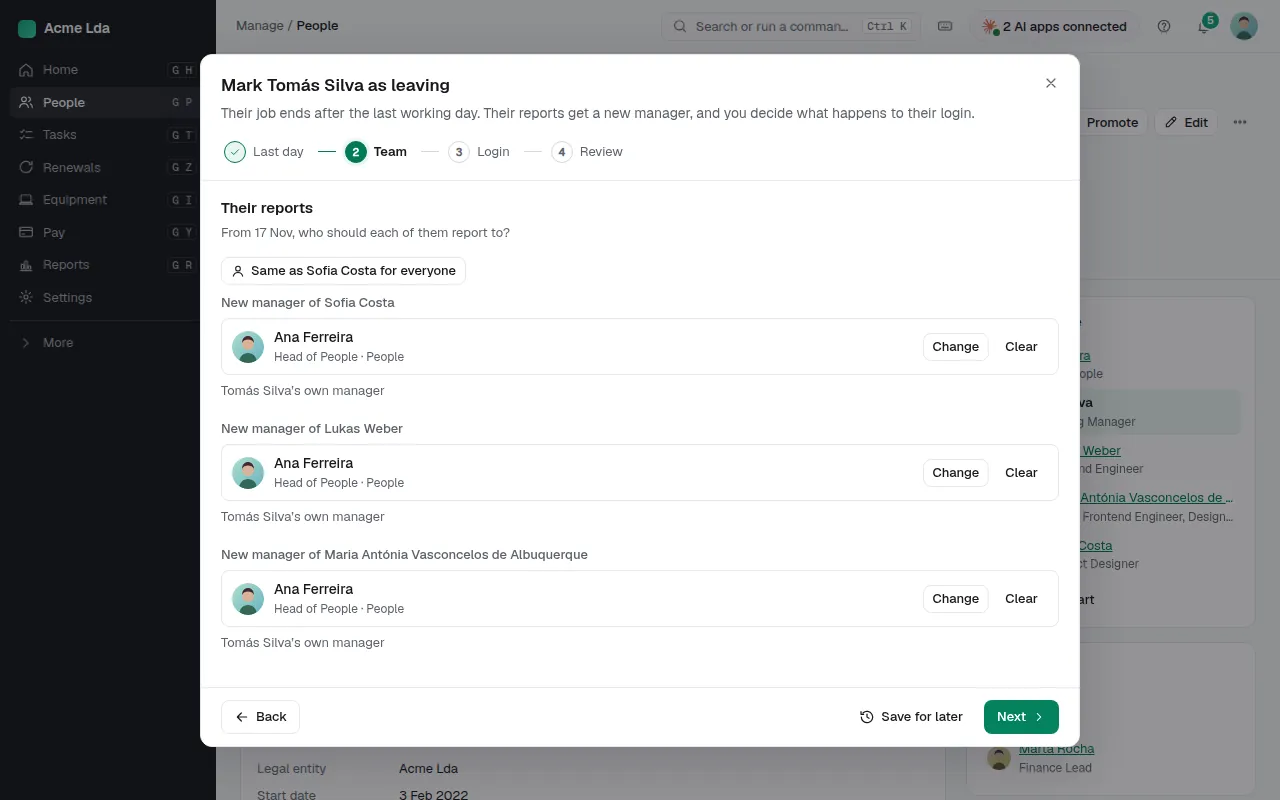
If they manage people, Bizisy asks who each of them reports to from the day after. Their own manager is suggested; change it per person, or use Same for everyone.
3. Their login and a replacement
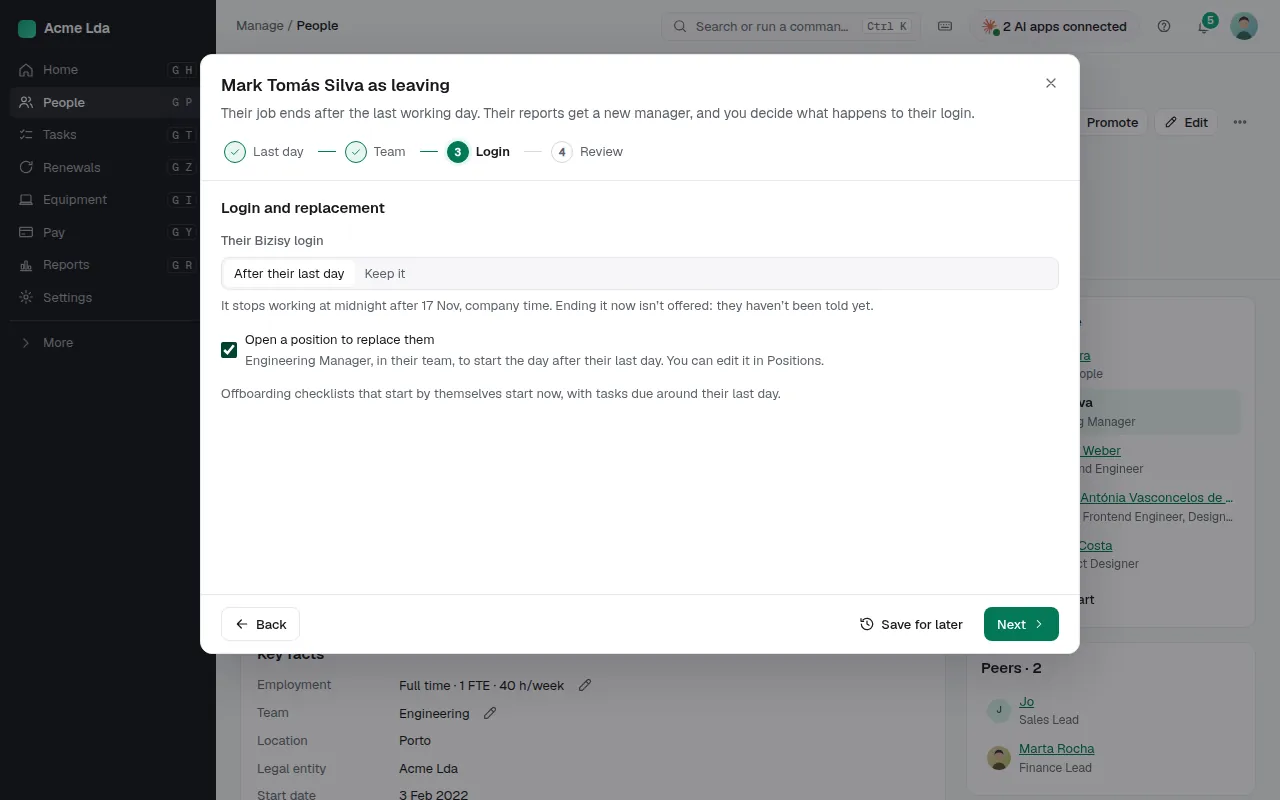
Choose what happens to their Bizisy login: it stops working at midnight after their last day, or keeps working until an owner or admin disables it. Tick Open a position to replace them to add their job to Open positions, starting the day after they leave. Offboarding checklists that start by themselves start now, with tasks due around their last day.
4. Review and confirm
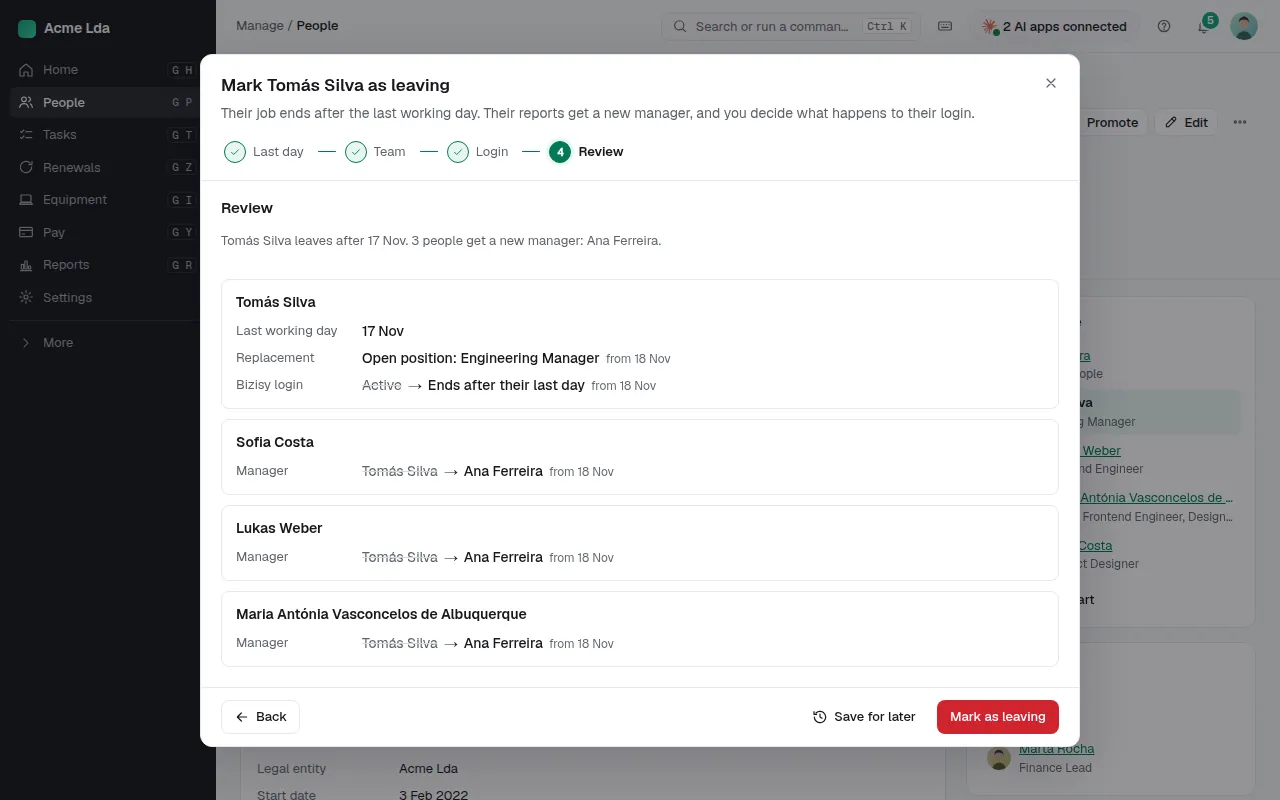
The review lists everything on one page: the last day, the replacement position, the login and each report's new manager. Choose Mark as leaving. If your company has an approval rule for terminations, it is sent for approval instead, and nothing changes until it is approved.
5. Take back their equipment
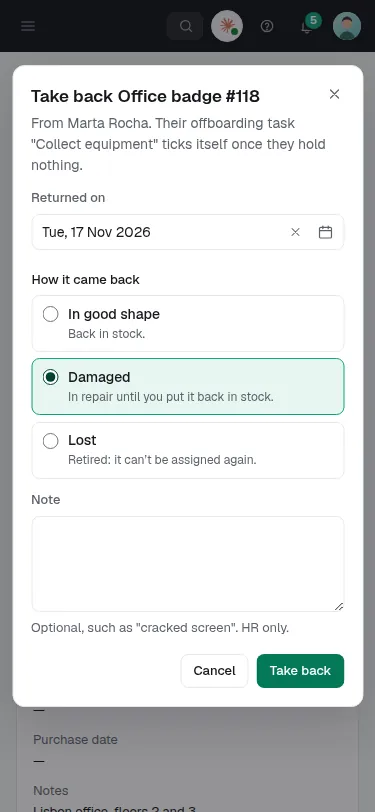
Laptops, phones and badges they hold are on the Equipment tab of their page. When something comes back, open it in Equipment and choose Take back: the date, and whether it came back in good shape, damaged or lost. Their offboarding task to collect equipment ticks itself once they hold nothing.
Tips
- Already marked as leaving and the date moves? Correct the last day instead of marking them again.
- Set up an offboarding checklist once in Settings → Onboarding and offboarding → Checklists; every leaver then gets the same steps with fresh dates.
- Home shows who is leaving in the next 60 days, so nothing about a last day comes as a surprise.